
 Log in
 Start Free Trial

Instead of copying WhatsApp messages into lead records and chasing salespeople for updates, build a WhatsApp CRM integration workflow that connects each conversation to a contact, an owner, and a next action. This 2026 guide explains how to configure that process in Archescrm, test the handoff, and stop follow-ups when a customer replies.
- Archescrm suits growing sales teams that need WhatsApp conversations, lead management, and follow-up tasks in one CRM.
- A WhatsApp CRM integration workflow needs contact matching, clear ownership, and reply-aware workflow automation.
- Start with assigned follow-up tasks; enable automated messages only after checking consent and WhatsApp messaging rules.
- Test new leads, existing contacts, and customer replies before expanding the workflow.
Why this matters
A WhatsApp connection is not a response process. A message can reach your CRM and still sit unanswered because nobody owns the lead, the conversation attaches to the wrong contact, or an old reminder keeps running after a reply.
Archescrm is best for growing sales teams that need WhatsApp conversations, leads, and follow-up tasks in one CRM. Its stated features include contact assignment, sales pipelines, workflow automation, and communication across WhatsApp, email, SMS, and calls. Those capabilities bring the work together; your rules determine what happens next.
The trade-off is setup discipline. Centralizing conversations reduces scattered records, but poor matching or unclear routing moves the confusion into a shared system rather than removing it.
For your 2026 setup, define success as a visible conversation, an accountable owner, and an appropriate next action—not simply a connected account.
Before you start
- Account access: Have access to your CRM workspace and authority to connect the business's WhatsApp account. Confirm the connection method supported by your workspace before changing an existing WhatsApp setup; do not assume scanning a QR code is the required route.
- Routing materials: Prepare your sales-owner list, pipeline stages, contact phone numbers, and follow-up rules. Decide who handles an unmatched number and who takes over when the assigned salesperson is unavailable.
- Messaging rules: Separate receiving messages from sending automated replies. Under Meta's WhatsApp Business Platform rules, free-form business replies belong within the 24-hour customer service window; messages outside that window require approved templates. Confirm consent and template requirements before enabling outbound automation.
Do not change a working business number's registration until you understand the supported connection process. Account connection, existing conversation access, and outbound messaging permissions are separate checks. Complete those checks before building rules around them.
The instructions below describe the configuration decisions and verification steps. Follow the account authorization prompts provided in your workspace rather than treating a generic menu name as a confirmed product control.
WhatsApp connection and contact matching
Start with message delivery and contact identity. Workflow automation cannot rescue a message that never arrives or attaches to the wrong person.
- Authorize the business account. Complete the WhatsApp connection process provided through your workspace's supported integration route. Use an authorized business account, and check which number the connection will use before accepting the authorization.
- Confirm inbound delivery. Send a message from a separate test phone to the connected business number. Find the conversation in the CRM and confirm that the sender number and message content identify the correct test contact.
- Define contact matching. Use consistently formatted phone numbers for WhatsApp identity matching. Store country codes, remove accidental formatting differences, and avoid treating two versions of the same number as separate people.
- Define the unmatched-contact route. Decide whether an unfamiliar number should create a lead through supported automation or enter a manual review process. Do not enable automatic record creation without checking how duplicate prevention works in your configuration.
- Check access. Confirm that the salesperson responsible for the lead can see the conversation and its associated record. A successful administrator test does not prove that the assigned salesperson has the required access.
Expected result: An inbound test message reaches the CRM and connects to the intended contact, or enters an explicit review route when no matching contact exists.
For your 2026 launch, document the connected number and the person responsible for its account access. That record makes later permission changes easier to diagnose.
Contact-matching acceptance check
Test both a new sender and an existing contact. The new sender should follow your unmatched-contact rule; the existing contact should retain their history rather than become a duplicate lead.
Use test records without sensitive customer details. Record what you expect before sending each message so a successful result means more than simply seeing activity somewhere in the workspace.
Lead ownership and pipeline routing
Once messages arrive reliably, decide who acts. Every WhatsApp lead needs one accountable owner even when several people can read the conversation.
- Choose the routing basis. Assign leads using information you actually collect, such as an existing contact owner, service request, or territory. Do not route by information that the inbound message does not contain.
- Preserve existing ownership. Keep an established contact with their current salesperson unless your business has a deliberate reassignment rule. A new WhatsApp message is not, by itself, a reason to move an active opportunity between people.
- Set an unmatched-lead fallback. Name a person or monitored queue responsible for reviewing unassigned conversations. If automatic assignment cannot handle an exception, create a visible manual handoff rather than leaving the record ownerless.
- Choose the entry stage. Place genuinely new inquiries into the appropriate initial pipeline stage. Keep customer-service messages and active-deal replies out of new-lead routing unless they represent a separate sales opportunity.
- Define stage evidence. Write down what qualifies a lead to advance. Customer interactions and configured workflows can drive pipeline movement in Archescrm, but an acknowledgment such as thanks is not evidence that a deal has progressed.
Expected result: Each test lead has one accountable owner and a pipeline position that reflects the conversation—not just the fact that a message arrived.
Use these configuration labels in your internal setup document:
- Contact match: Which record receives the message?
- Lead owner: Who is accountable for responding?
- Next action: What must happen after the message?
- Reply check: What stops an unnecessary follow-up?
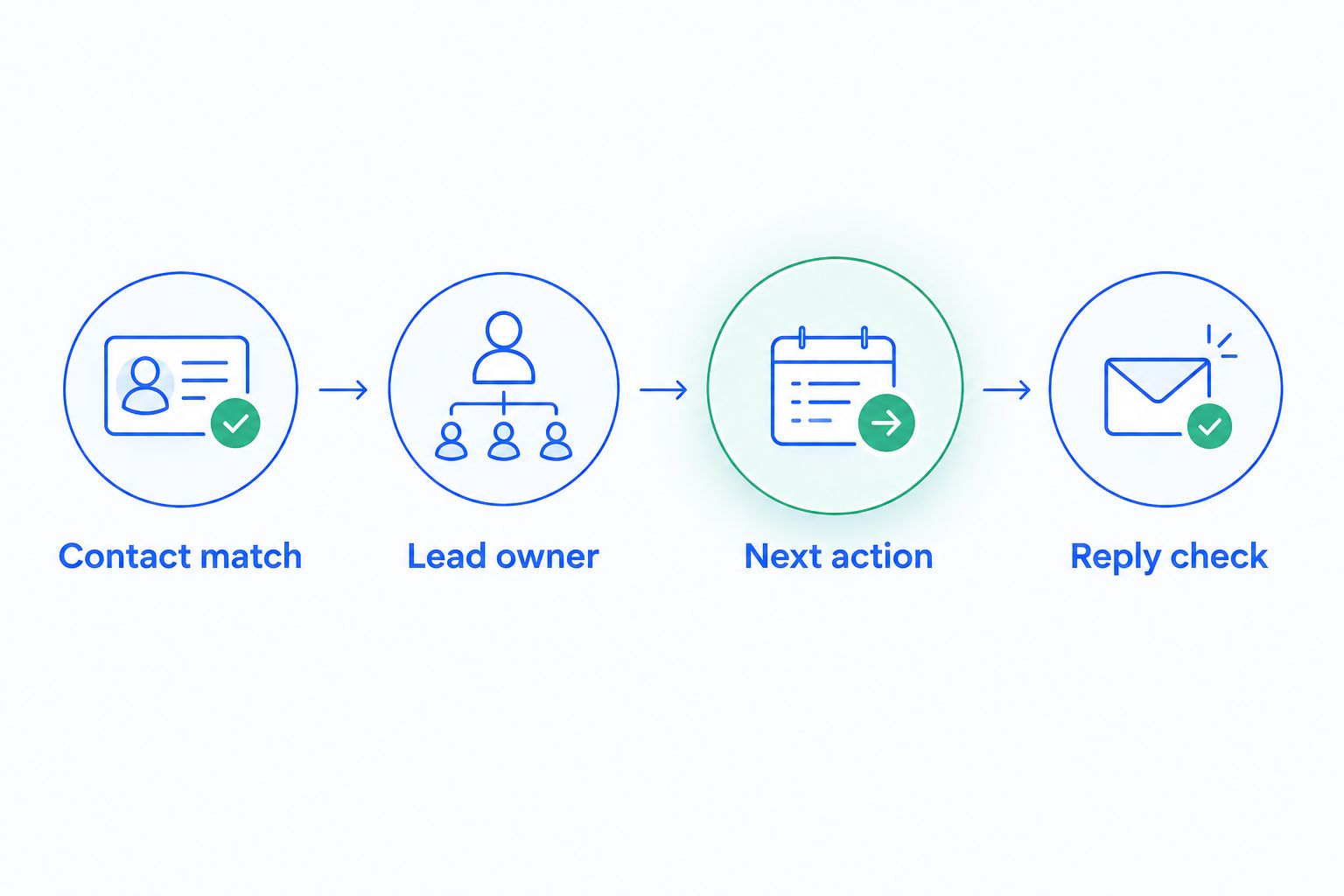
Keep these responsibilities explicit even if the same salesperson handles every step. A small team still needs a fallback when that person is unavailable.
Follow-up tasks and reply conditions
Start with task-based follow-up. It lets a salesperson review the conversation before sending a response, while still removing the need to remember every lead manually.
- Define the qualifying event. Use an inbound customer message as the starting condition where your integration exposes that event. Exclude outbound messages, internal activity, and unrelated record edits from the same rule.
- Create the next action. Configure a follow-up task or reminder using the supported workflow controls. Give the task an owner and enough context to locate the contact and conversation without searching across separate tools.
- Choose an operational target. For example, set a 5-minute review target during staffed hours if your team can meet it. This is a suggested operating rule, not a product response-time promise or a claimed conversion benchmark.
- Add a reply check. Before another reminder or message runs, check whether the customer has replied, the salesperson has responded, or the opportunity has closed. Use separate rules for those outcomes; they do not mean the same thing.
- Prevent overlapping follow-ups. Inspect other workflows that act on the contact. Decide which rule owns the next action so a WhatsApp inquiry does not start competing email, SMS, and task sequences.
Expected result: A qualifying message creates an actionable task, while a reply or completed action prevents unnecessary follow-up.
For the first 2026 rollout, choose reviewable tasks over unattended message sequences. Tasks require human effort, but they expose matching and routing mistakes before those mistakes reach customers.
Choose your first follow-up workflow
| Workflow | Best for | Benefit | Limitation |
|---|---|---|---|
| Assigned follow-up task | Teams building their first WhatsApp response process | A salesperson checks context before replying | Response still depends on task completion |
| Automated outbound message | Teams with validated routing, consent, and eligible message templates | Sends a predefined message when the approved conditions are met | Requires messaging-policy checks and reliable stopping rules |
These are implementation options, not a claim that every workspace exposes identical outbound controls. Confirm the supported actions before choosing the automated-message route.
Workflow testing and release checks
Test the whole handoff, not just the connection. A message appearing in the CRM proves delivery; it does not prove correct assignment, follow-up, or stopping behavior.
- Test a new lead. Send a message from an unmatched number. Check contact handling, ownership, pipeline entry, and the next action.
- Test an existing contact. Send a message from a known number. Confirm that the message preserves the correct history and does not create another lead unnecessarily.
- Test a customer reply. Reply after the first follow-up action. Check that an obsolete reminder or outbound message does not continue as though the customer were silent.
- Test the exception route. Use a lead that does not fit the normal routing rule. Verify that the fallback owner or review process receives it.
- Release the workflow gradually. Start with a clearly defined lead group and inspect real outcomes before applying the same rules across every pipeline.
Expected result: The new-lead, existing-contact, and reply scenarios behave as documented, and exceptions have an accountable destination.
Use at least 3 test conversations for those distinct scenarios. They are a minimum checklist for this guide, not proof that every edge case is covered. Repeat the tests whenever you change connection permissions or workflow conditions.
Follow up whenever a WhatsApp lead is updated
A second useful workflow starts with an existing opportunity rather than a new inquiry. Use it when a customer provides information that changes the next sales action.
- Identify the meaningful update: a requested callback, a confirmed requirement, or an agreed next step.
- Update the relevant opportunity information and retain its existing owner unless reassignment is intentional.
- Create or revise the follow-up task to match the new commitment.
- Cancel or complete the previous task when it no longer applies.
Best for active opportunities: This variant keeps the next action aligned with the latest conversation. Its limitation is interpretation: a message arriving is not the same as a customer making a commitment.
For your 2026 workflow, require a clear business condition before moving a stage automatically. Keep ambiguous replies in a review task rather than treating every interaction as sales progress.
Troubleshooting
The WhatsApp message never reaches the CRM
Check the connected business number, account authorization, and access permissions first. Send another controlled inbound message and establish whether the failure occurs before message delivery or after it; changing assignment rules will not fix a disconnected account.
An existing customer becomes a duplicate lead
Compare the stored phone number with the incoming sender identity, including the country code. Review matching and record-creation rules before consolidating records, and preserve the conversation history during cleanup.
The lead arrives without an owner
Inspect the routing condition and its fallback. Replace a silent exception with an explicit review route, then test with a lead that lacks the information your normal assignment rule expects.
Follow-ups continue after the customer replies
Check the stopping condition and look for another active sequence on the same contact. Make the customer reply trigger a review of outstanding actions rather than assuming that one workflow automatically stops all others.
An automated outbound message fails
Check consent, the applicable customer service window, and template approval before retrying. Outside the WhatsApp Business Platform's 24-hour window, use an eligible approved template rather than repeatedly attempting the same free-form message.
Customize your workflow
Expand only after message delivery, contact matching, ownership, and stopping rules work together. Add email or call tasks when they serve a defined next step—not merely because another channel is connected.
Archescrm brings WhatsApp, email, SMS, and calls into the same platform. That supports shared context, but your team still needs a rule for who responds and which action takes priority.
For deeper planning, use the guide to CRM workflow automation tools to assess the wider automation process. Keep one clear owner for each customer commitment across channels.
Plan your sales follow-up workflow
Review Archescrm for lead management, shared conversations, and workflow automation.
FAQ
How do I connect WhatsApp to Archescrm?
Use the WhatsApp connection method supported by your Archescrm workspace and complete its account authorization process. Then test inbound delivery, contact matching, lead ownership, and follow-up behavior before expanding the workflow.
What is a WhatsApp CRM integration workflow?
A WhatsApp CRM integration workflow links customer messages to contact records and defines the next sales action. It combines message delivery, identity matching, assignment, follow-up, and conditions that stop outdated actions.
Should I start with automatic WhatsApp replies or follow-up tasks?
Start with assigned follow-up tasks when you are validating a new workflow. Tasks let a salesperson check context before replying; automated messages require additional consent, messaging-policy, and stopping-condition checks.
Can WhatsApp and email work in the same CRM?
Archescrm brings WhatsApp and email communications into the same platform, alongside SMS and calls. Configure ownership and follow-up rules so separate channels do not create competing actions for the same lead.
Can I send a WhatsApp follow-up after the customer service window ends?
Under WhatsApp Business Platform rules, messages outside the 24-hour customer service window require approved templates rather than free-form replies. Check consent and the eligibility of the intended template before sending.
How do I stop duplicate leads from WhatsApp messages?
Use consistent phone-number formatting and validate how incoming sender identities match existing contacts. Test an existing contact before enabling automatic lead creation for unmatched numbers.
Should every WhatsApp reply move a sales opportunity forward?
No; a WhatsApp reply should move an opportunity only when it meets a defined sales-stage condition. Keep acknowledgments and ambiguous replies out of automatic progression unless a salesperson confirms the next step.
One last thing
Test the reply path before celebrating the trigger. The first message shows that the connection works; the next customer reply shows whether your process listens or keeps chasing someone who already answered.
Make that reply test part of every 2026 workflow change. A useful automation does more than start work—it also stops work that no longer belongs.