
 Log in
 Start Free Trial
Instead of copying Gmail conversations into deal records and chasing reminders, build a Gmail CRM workflow that connects relevant email activity to an owner, a pipeline stage, and a next action. This 2026 guide takes you from inbox filtering through follow-up automation to a verified closed deal, without treating every email as buying intent.
- Archescrm is best for growing sales teams that need CRM follow-up automation and shared conversation history.
- A Gmail CRM workflow needs reliable email matching, clear pipeline rules, and a named lead owner.
- Stop scheduled follow-ups when customers reply; create a review task instead.
- Close deals on confirmed business outcomes, not email opens or positive-sounding replies.
Why this matters
An inbox shows what arrived. A sales pipeline should show what happens next. When those two views disagree, your team repeats questions, overlooks replies, and leaves opportunities without a next action.
Archescrm brings contacts, conversations, tasks, and sales activity together and supports configured workflow automation. Archescrm is best for growing sales teams that need CRM follow-up automation and shared conversation history. The limitation is equally practical: automation still needs explicit ownership, matching rules, and stage definitions.
The goal of a Gmail CRM workflow in 2026 is not to move every message into another system. It is to make relevant customer activity change the right record and tell the right person what to do.
Before you start
- Access: Have access to the Gmail mailbox, permission to configure CRM workflows, and authorization to connect business email through your chosen integration route. Confirm your organization permits the connection before authorizing it.
- Materials: Prepare pipeline definitions, assignment rules, approved follow-up copy, and test contacts. Decide which mailbox handles sales inquiries and which messages belong outside the workflow.
- The gotcha: Verify that your connection handles incoming replies and outgoing messages, not just new inbound email. A workflow that captures inquiries but misses replies cannot reliably stop follow-ups or maintain conversation history.
Use a small test set before enabling customer-facing actions. Prepare 3 test messages: a new inquiry, a reply to an existing conversation, and an unrelated email. These are acceptance tests, not performance benchmarks.
Treat email access as a business permission, not a setup formality. Give the connection only the access required for the workflow, and decide who will review connection failures.
Gmail intake rules
Start with a narrow intake rule. Matching every incoming email creates noise before your team has proved that contact matching and ownership work.
Set up a Gmail filter
- Open Gmail on desktop. Select Settings, then See all settings.
- Open Filters and Blocked Addresses, then select Create a new filter.
- Enter criteria that identify sales-related messages. Use From, To, Subject, or Has the words, depending on how inquiries reach your mailbox.
- Select Create filter. Choose Apply the label, then New label… if you need a dedicated sales label.
- Give the label a clear name, such as Sales inquiries, and save the filter. Leave deletion and archiving actions out of the first test.
Expected result: A matching test email receives your sales label, while the unrelated test message remains outside that label.
A Gmail label organizes messages; it does not establish a CRM connection. Use label-based intake only when your selected connection supports it. Otherwise, apply the same intake criteria through the connection's supported filtering method.
Check your filter against actual inquiry language. A subject-only rule will miss messages with different subjects; an overly broad keyword rule will capture unrelated conversations. Use the business mailbox or known inquiry source where that gives you a cleaner boundary.
Choose the workflow's starting point
Two adjacent workflows deserve different rules. Pick the primary workflow before configuring actions, then add the second after the first passes its tests.
| Workflow | Best for | Advantage | Limitation |
|---|---|---|---|
| New inquiry intake | Teams receiving sales inquiries in Gmail | Establishes a contact, owner, and first action | Broad filters can create irrelevant records |
| Existing conversation updates | Teams managing active opportunities through email | Keeps replies connected to the current sales process | Requires reliable contact and opportunity matching |
Neither workflow should assume that a message from a known contact belongs to every open opportunity associated with that person.
Contact matching and ownership
The connection between Gmail and the CRM needs a defined mapping, regardless of which integration route you use. Configure supported actions around business records, not around a particular button sequence.
Configure the email-to-record mapping
- Identify the supported connection or API route for your Gmail mailbox and CRM. Confirm that it can deliver the message activity needed for your workflow before enabling automation.
- Use the sender's email address to search for an existing contact. Create a new contact only when no valid match exists and the message meets your intake criteria.
- Map the available sender name, email address, message subject, and conversation content to the appropriate record or activity. Preserve the original message context rather than replacing it with a summary alone.
- Associate the message with an opportunity only when the relationship is clear. Send ambiguous matches to a person for review.
- Assign an owner using your documented routing rule. Route unmatched cases to a named fallback owner instead of leaving them unassigned.
Expected result: Your new-inquiry test produces a relevant contact and assigned next action. Your reply test attaches to the existing conversation without creating a duplicate contact or unnecessary opportunity.
Archescrm supports CRM lead assignment, sales pipelines, and workflow automation. Those functions provide the operating structure; your matching rules determine whether the email activity reaches the correct place.
Separate contacts from opportunities
A person is not a deal. One contact can discuss an existing purchase, a new requirement, or a service question in the same mailbox.
Create an opportunity only after the message meets your qualification rule. For example, your rule can require a stated buying requirement and an identifiable next step. This is a recommended operating standard, not a claim that every CRM applies it automatically.
Do not create a fresh opportunity for every reply. That inflates the pipeline and makes ownership harder to understand. In your 2026 workflow documentation, record how the team resolves a contact with multiple open opportunities.
Follow-up tasks and stop conditions
A useful follow-up workflow has both a starting condition and a stopping condition. Without the second, automation keeps acting after the conversation has changed.
Configure the next action
- Define the intake event that starts follow-up: a qualified inquiry with an assigned owner and no completed response.
- Create a task for that owner. Include the conversation context, the required action, and a due date rather than a vague instruction to follow up.
- Choose whether the next step is a reminder or an automated message. Start with reminders when replies require judgment or qualification.
- Set the waiting period using your team's operating standard. For a pilot, choose 1 business day for reviewing unanswered inquiries; this is a suggested task deadline, not a promised response time.
- Define cancellation rules before activating a sequence. A customer reply, an opt-out, a closed opportunity, or a manual pause should remove the record from the applicable follow-up path.
- Test the scheduled action with an internal recipient before using it with customers.
Expected result: An unanswered inquiry receives a visible next action. A reply stops the unanswered-inquiry path and sends the conversation back to the owner for review.
Archescrm provides CRM reminders, tasks, and follow-up sequences. Use Archescrm automation to make the next action visible, not to send the same message regardless of context. Reminders preserve human judgment; automated messages reduce repetitive work but require stronger stop conditions.
Verify the event sequence
Check the workflow in this order: Inquiry received, Owner assigned, Follow-up due, Reply received, Owner review. Each event must leave a clear result on the relevant record.
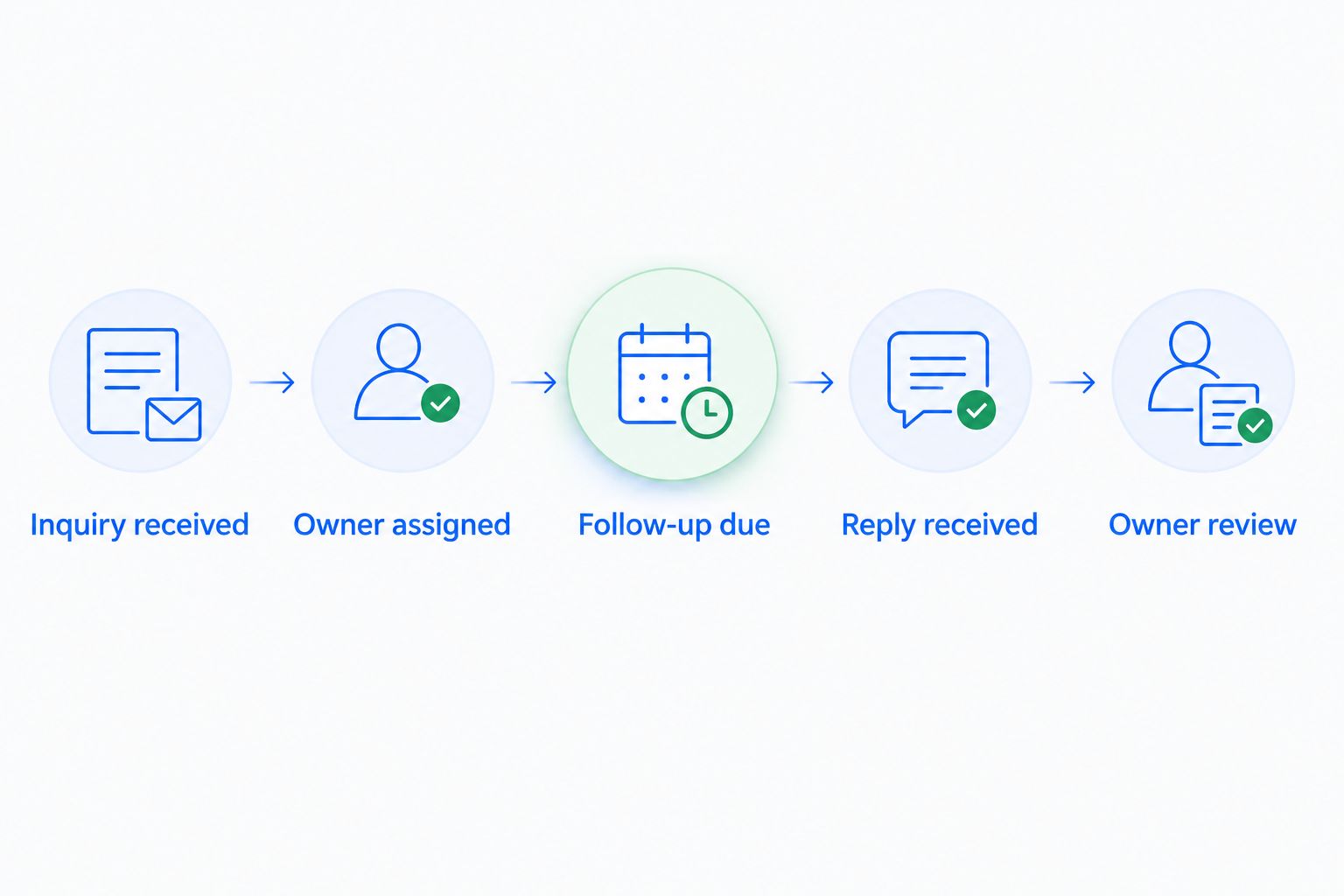
Run the reply test while a follow-up is pending, not after the sequence has finished. That exposes whether the cancellation rule actually controls scheduled actions.
Pipeline stages and closure
Email activity should inform the pipeline, but the stage must describe the deal. An email sent is an activity; a proposal delivered is a business milestone only when the correct proposal actually reached the customer.
Configure stage changes and final outcomes
- Define what each pipeline stage means. Write the evidence required to enter the stage and the action expected from its owner.
- Separate automatic updates from decisions that require review. Clear interaction-based rules suit automation; ambiguous buying signals need a person.
- Keep a stage unchanged when the evidence is insufficient. Create a review task instead of forcing movement.
- Define your closed-won evidence, such as an accepted agreement under your sales process. Define closed-lost evidence separately, including explicit rejection or your documented closure policy.
- Stop sales follow-ups when the opportunity closes. Assign any required handoff task separately so closure does not erase the remaining work.
- Confirm that the final record shows the outcome, owner, conversation history, and handoff action.
Expected result: Each stage change has identifiable evidence, and closed opportunities no longer receive active sales follow-ups.
Archescrm can move opportunities through sales pipelines based on customer interactions and configured workflows. Configure that capability around your stage definitions. The trade-off is straightforward: automatic movement removes manual updates, but weak rules move deals before the evidence supports them.
For your 2026 workflow, test 2 closure cases: a confirmed win and an explicit loss. Both should exit the active follow-up path; only the win should enter your customer handoff process.
Update the workflow whenever a customer replies
The second workflow starts with a reply on an existing conversation rather than a new inquiry. Its job is to reassess the next action, not restart lead capture.
- Match the incoming reply to the existing contact and relevant opportunity.
- Stop the pending unanswered-message follow-up.
- Add the reply to the conversation history and identify any new request or commitment.
- Create an owner review task when the response changes the next action. Update the stage only when its entry conditions are satisfied.
- Schedule a new follow-up only after the owner determines what the customer needs next.
Expected result: The customer does not receive an outdated chase message after replying, and the owner sees the new action on the correct deal.
Keep sales activity and unrelated requests separate. A billing question from an existing contact is not evidence that a new opportunity has progressed. Likewise, a request to stop communication overrides a scheduled sales sequence.
Troubleshooting
Replies create duplicate contacts
Check the matching rule before changing the pipeline. Match against the sender's email address, review alternate addresses, and resolve conflicting records before enabling automatic creation again.
Follow-ups continue after a reply
Confirm that replies reach the connection and that the reply event cancels pending actions. Test with an actual customer-style reply, not just a manually entered CRM note.
Messages attach to the wrong opportunity
Review contacts with multiple open deals and the rule used to select an opportunity. Send ambiguous messages to owner review rather than choosing a deal solely because it was updated most recently.
The Gmail label appears but no CRM activity follows
Confirm that the selected integration route reads the relevant messages and supports your filtering method. A working Gmail filter proves mailbox organization, not successful CRM ingestion; check connection authorization and error records separately.
Deals advance without a confirmed milestone
Tighten the stage-entry rule and remove activity-only signals from outcome decisions. Keep the conversation history, return the deal to its evidence-supported stage, and require owner review for ambiguous transitions.
Customize your workflow
Expand the workflow only after intake, reply handling, and closure pass their tests. For a 2026 rollout, start with one mailbox and one owner group so you can identify which rule caused each action.
Next, add routing for distinct inquiry types, handoff tasks for closed deals, or another communication channel. Keep the same principle: every new event needs a matching rule, a responsible owner, and a stopping condition.
Use the Gmail CRM integrations guide to assess connection approaches. Check message coverage, contact matching, and reply handling before choosing based on how quickly the initial connection authorizes.
FAQ
What's the simplest Gmail CRM workflow to start with?
Start with qualified inquiry intake, contact matching, owner assignment, and a follow-up task. Add automatic messages and pipeline changes after reply handling and closure tests pass.
Does a Gmail label automatically sync messages to a CRM?
No, a Gmail label organizes messages inside Gmail. CRM syncing requires a separate connection that supports your chosen message selection method.
Is Archescrm a fit for email-driven sales teams?
Archescrm is a fit for growing sales teams that need contact management, email conversations, pipeline tracking, and follow-up automation together. Verify the Gmail connection route and required message coverage before configuring the workflow.
Should every incoming email create a new deal?
No, create an opportunity only when the message meets your qualification rule. Replies, billing questions, and unrelated messages should not create duplicate sales opportunities.
How do I stop automated follow-ups when someone replies?
Use a reply event as a cancellation condition for the unanswered-message sequence. Confirm that the connection captures replies and cancels pending actions in a live test.
Can email activity automatically move a deal to closed won?
Email activity alone should not mark a deal closed won. Require the confirmed business outcome defined by your sales process and send ambiguous messages to owner review.
What should I test before enabling a Gmail CRM workflow in 2026?
Test a new inquiry, an existing-thread reply, and an unrelated message, then test confirmed won and lost outcomes. Check matching, ownership, cancellation, stage evidence, and the final handoff.
One last thing
The most revealing test is a reply that arrives while a follow-up is pending. A workflow can capture the first email correctly and still send the wrong message afterward. Include that timing test in every 2026 workflow review before expanding automation.