
 Log in
 Start Free Trial


Instead of manually copying invoice updates into sales records, build a QuickBooks CRM integration that matches each invoice to the right customer and gives the sales owner a clear next action. Use this 2026 workflow to plan the connection to Arches CRM, confirm supported integration actions, and test invoice follow-up before enabling live automation.
- Build your QuickBooks CRM integration around customer IDs, invoice IDs, and explicit follow-up rules.
- Arches CRM suits growing sales teams that need customer conversations, pipeline tracking, and follow-up automation together.
- Confirm supported QuickBooks and CRM actions before choosing a connector or building an API workflow.
- Keep accounting changes in QuickBooks; send sales-relevant invoice context to the CRM.
Why this matters
An invoice exists in accounting, but the account owner still asks whether the customer has paid. Without a shared process, someone checks QuickBooks, copies the answer into a sales record, and remembers to cancel a follow-up task.
Arches CRM is best for growing sales teams that need customer conversations, pipeline tracking, and follow-up automation together. Its CRM workflows can organize reminders and tasks; an invoicing connection still needs verified access, supported actions, and clear ownership rules.
Use Arches CRM for the sales-side context described here. For your 2026 setup, define the business outcome before selecting integration software: the right owner should know what needs attention without editing accounting records from memory.
Before you start
- Account access: Have an authorized QuickBooks administrator and a CRM administrator available. Confirm your QuickBooks edition, the company being connected, and permission to authorize the intended integration method.
- Connection requirements: Verify that your chosen connector or API implementation supports reading the required invoice information and writing the intended CRM record or task. Confirm authentication, field access, and error reporting before building.
- The matching gotcha: Prepare a customer-to-contact mapping and an invoice-to-record mapping. One customer can have several invoices and opportunities; matching by email alone does not identify the correct deal.
A connector listing is not proof that every required action exists. Ask whether the connection can retrieve invoice changes, identify the related customer, find the intended CRM record, and update it without creating duplicates.
Choose the connection method
For a 2026 QuickBooks CRM integration, choose the method by its supported actions—not by the length of its integration directory. Do not assume a native QuickBooks connection, a specific connector, or an invoice-specific CRM field is available without checking.
| Method | Best for | Advantage | Limitation |
|---|---|---|---|
| Verified connector | Teams whose required triggers and actions are supported | Keeps configuration in a managed integration interface | Unsupported fields or actions can block the workflow |
| API implementation | Teams with technical ownership and requirements a connector cannot meet | Lets the implementation define matching, transformation, and recovery logic | Requires development, monitoring, and maintenance |
| Manual handoff | Teams validating the process before automation | Makes ownership and exceptions visible before building | Still requires people to transfer updates |
Start with the simplest method that passes your acceptance tests. A connector that cannot identify the correct invoice is not a shortcut. An API project without an owner for failures is not a finished workflow.
Customer matching and field ownership
Establish the record relationship before configuring triggers. This prevents a technically successful update from landing on the wrong opportunity.
Define the matching rules
- Choose the customer identifier from QuickBooks that your connection can read. Store the relationship to the corresponding CRM record in a supported field or in the integration's mapping store.
- Define how an invoice relates to an opportunity. Use an explicit relationship when available; otherwise, route ambiguous matches to a person instead of selecting the first open deal.
- Define the missing-match outcome. Send unmatched customers or invoices to an exception queue with an assigned owner; do not silently create an opportunity for every invoice.
- Decide which system owns each value. Keep invoice balances, payment information, and accounting corrections under accounting ownership. Keep sales ownership and relationship follow-up under CRM ownership.
Expected result: You can trace a sample invoice to its accounting customer and intended CRM record without relying on a name search.
Write a field map
Use this table as a specification, not as a promise that identical field labels exist in either interface. Map each item only after confirming the available source fields and destination capabilities.
| Information | Source of truth | Intended use |
|---|---|---|
| Accounting customer identifier | QuickBooks | Match the accounting customer to the CRM relationship |
| Invoice identifier | QuickBooks | Recognize an existing invoice during later updates |
| Due date and remaining balance | QuickBooks | Evaluate whether follow-up is appropriate |
| Sales owner | CRM | Assign the relationship task |
| Latest successful processing time | Integration log | Investigate stale or missing updates |
Avoid copying every available field. Each additional writable field creates another ownership decision and another place for conflicting updates.
Invoice trigger and update rules
Build the first workflow around an invoice event or scheduled lookup that your selected connection actually supports. Do not promise instant synchronization until you have checked the connection's delivery behavior.
Configure the invoice input
- Authorize the correct accounting company through the selected integration method. Confirm the company identity before granting access.
- Select a supported invoice event or scheduled retrieval method. Include invoice changes if the workflow must react after the invoice is created.
- Retrieve the invoice information needed for matching and follow-up. Check the customer relationship, invoice identifier, due date, and remaining balance where those fields are available.
- Apply eligibility rules. Exclude invoices that should not trigger sales follow-up, such as voided records, using the accounting state your integration exposes.
- Find the mapped CRM record. If there is no unambiguous match, stop the automated update and assign the exception.
Expected result: A qualifying invoice produces one identifiable workflow run with its source record, destination record, and processing outcome recorded.
Configure the CRM update
- Choose a supported destination: an appropriate field, note, or task. Do not treat a sales-stage change as a substitute for an invoice record.
- Write only the sales-relevant information the owner needs. Include enough context to distinguish this invoice from other invoices belonging to the same customer.
- Use the invoice identifier to update existing context rather than appending the same information repeatedly.
- Define the next action separately from the data update. An invoice becoming overdue can justify an internal review task without justifying an immediate customer message.
- Record a successful outcome only after the destination operation succeeds. Keep failed updates visible for retry or review.
Expected result: The intended owner sees the relevant invoice context without duplicate tasks or an unexplained pipeline-stage change.
The guide to reducing manual CRM data entry explains the broader workflow problem. Here, the narrower objective is reliable invoice context—not unrestricted accounting edits from the sales pipeline.
Follow-up rules and acceptance testing
Separate invoice visibility from customer messaging. The first can inform your team; the second can create a customer problem if the payment state or recipient is wrong.
Define the follow-up decision
- Evaluate the current accounting information before creating a task. Do not rely solely on a previously copied balance.
- Assign the task to the mapped relationship owner. Use a designated exception owner when the sales owner is missing.
- Check for an existing task for that invoice and action. Update it instead of creating another copy on every run.
- Define what happens when the invoice no longer qualifies. Close or cancel the related task through a supported action, or route that cleanup to an owner.
- Keep disputed invoices and uncertain matches out of automatic customer messaging until a person reviews them.
Expected result: Each eligible invoice has a clear follow-up owner, while resolved or excluded invoices do not keep generating collection tasks.
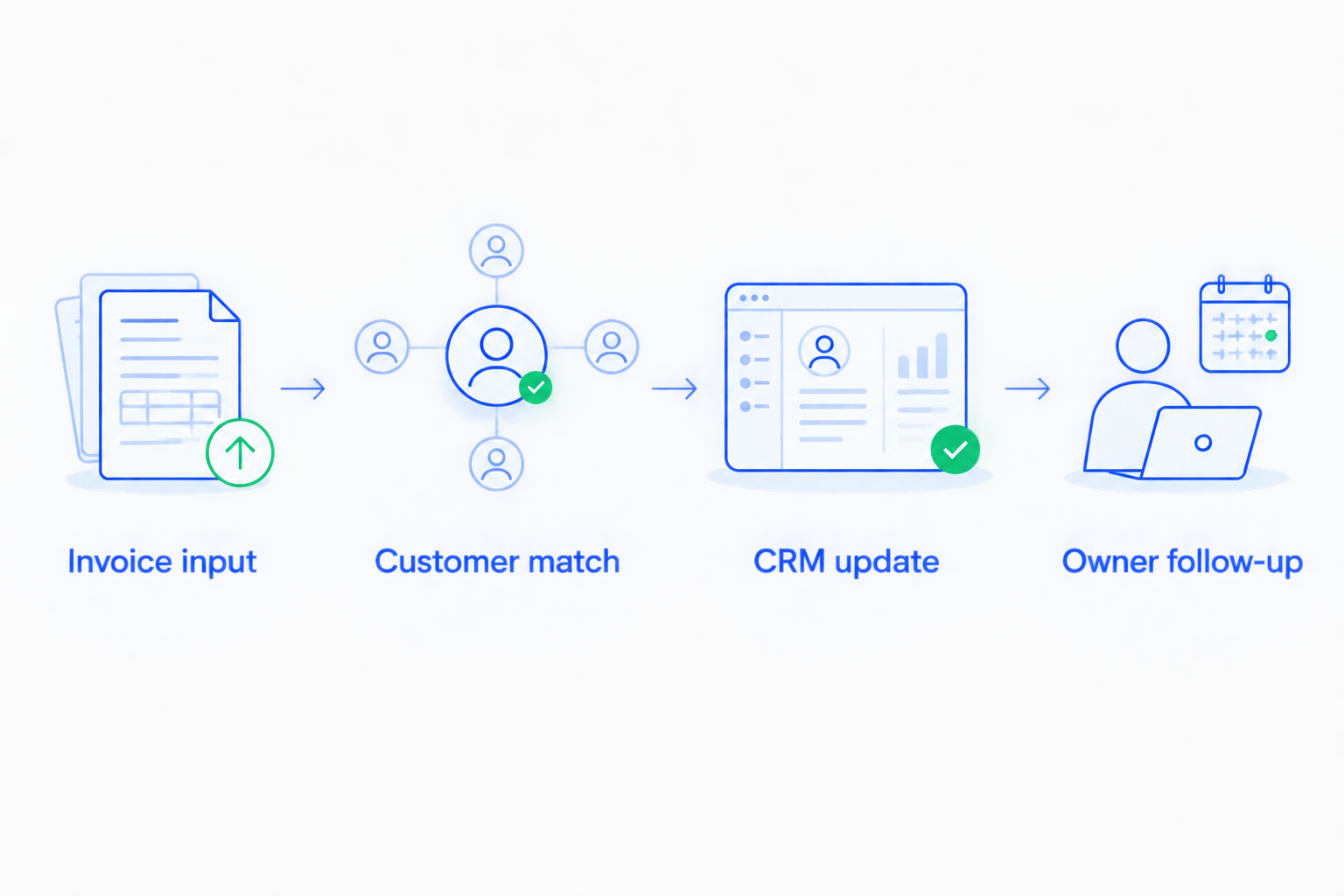
The sequence is Invoice input, Customer match, CRM update, then Owner follow-up. Keep the matching gate ahead of every action that changes a customer record or contacts a customer.
Run controlled acceptance tests
For your 2026 launch, use controlled records that will not trigger unintended customer messages. Keep outbound communication disabled while checking data movement.
Run these 3 test cases:
- New invoice: Confirm the correct customer and destination record, then verify the intended task or context appears.
- Changed invoice: Update an allowed test value and verify the existing destination information changes without duplication.
- Resolved invoice: Test the accounting state that should stop follow-up and confirm the related task is handled correctly.
Replay the same eligible input 2 times. Your acceptance criterion is 1 task per invoice and action, not one task per processing attempt.
Finally, test an unmatched customer and a rejected destination update. Both should produce visible exceptions with an owner. A workflow is not ready until failure has a defined destination.
Update follow-up whenever an invoice changes
The adjacent workflow handles changes after the original invoice handoff. It matters when a payment, due-date correction, or accounting adjustment changes what the sales owner should do next.
Use a supported change event or scheduled recheck to retrieve the current invoice state. Match the existing invoice relationship, update the sales context, and reevaluate the follow-up rule rather than creating a new handoff.
Best for: Teams that already have invoice matching working and need existing tasks to reflect accounting changes. The advantage is current follow-up context; the limitation is that every relevant accounting change must be captured by the selected connection method.
Partial payment needs particular care. A payment does not necessarily mean the invoice has no remaining balance. Define the stop condition using the accounting values available to your implementation, not the mere existence of a payment event.
Keep this second workflow one-way initially: accounting changes inform sales actions. Do not let an ordinary sales-stage change create or alter accounting transactions without a separate, approved process.
Troubleshooting
Duplicate tasks appear after retries
The workflow is treating each delivery as a new action. Use a stable key built from the invoice identifier and intended action, then check for an existing task before creating another.
The invoice updates the wrong opportunity
The matching rule relies on a shared customer name or email. Require an explicit invoice-to-opportunity relationship, or send the record for manual selection when several opportunities qualify.
Follow-up continues after payment
Check whether the workflow receives subsequent invoice changes and whether it reevaluates the remaining balance. Then inspect the task-cleanup action; updating invoice context alone does not cancel a reminder.
Updates stop reaching the CRM
Inspect connection authorization, integration errors, and destination permissions. Restore access, then replay the failed records through the same duplicate-prevention rules used during normal operation.
Newer information gets overwritten
Repeated or delayed processing can apply an older state after a newer one. Where supported, compare source modification information before writing; otherwise, retrieve the current invoice state before applying the update.
Customize your workflow
Once the basic connection passes testing, expand the process without expanding accounting permissions unnecessarily. Add an owner-review task for disputed invoices, a queue for unmatched records, or a handoff after the accounting condition is confirmed.
Arches CRM supports workflow automation for reminders, tasks, and follow-up sequences. Connect those capabilities to verified invoice information rather than assuming a sales-stage change proves payment.
For ongoing 2026 operations, assign responsibility for connection failures, mapping corrections, and workflow changes. Review failed updates before adding more automated messages.
FAQ
What is the best way to build a QuickBooks CRM integration?
Choose a verified connector when it supports your required invoice inputs, customer matching, and CRM actions. Use an API implementation when those requirements need custom handling and you have technical ownership for maintenance.
Does Arches CRM have a native QuickBooks integration?
Confirm native QuickBooks connectivity directly before planning around it. General integration and API capabilities do not establish that a specific QuickBooks connector or invoice action is supported.
Can I automatically create invoices when a deal closes?
Only configure automatic invoice creation after verifying a supported accounting write action and an approved billing process. A closed deal alone does not establish the correct customer, invoice details, or accounting treatment.
Should every invoice create a new CRM deal?
No; link an invoice to the appropriate existing relationship or opportunity when one exists. Route ambiguous relationships for review instead of creating duplicate sales records.
Can payment updates stop CRM follow-up tasks?
Yes, if the implemented connection can read the relevant accounting changes and perform the required task update. Test the full stop condition, including remaining balances, before enabling automated customer messages.
How do I prevent duplicate invoice follow-up tasks?
Use the invoice identifier and intended action as a stable matching key. Check for an existing task before creating one, and replay the same test input to verify duplicate prevention.
Will a QuickBooks CRM integration update instantly?
Update timing depends on the verified connection method and its configuration. Check whether it uses events or scheduled retrieval, then test the observed delay before setting team expectations.
One last thing
An invoice is not a deal stage. A customer can owe money on an existing engagement while discussing a new opportunity, so moving every related deal when an invoice changes can distort the pipeline.
Make that distinction part of your 2026 launch checklist. Keep the accounting event, the sales record, and the next action connected—but separate.