
 Log in
 Start Free Trial

Instead of copying Outlook conversations into contact records and chasing overdue follow-ups, build an Outlook CRM integration that matches messages to leads, assigns ownership, and creates the next task. Archescrm provides CRM and workflow automation for growing sales teams; use the workflow below after confirming an Outlook-compatible connection for your account.
- An Outlook CRM integration needs reliable message matching, clear ownership, and follow-up rules—not just an email connection.
- Archescrm suits growing sales teams that need CRM workflow automation around leads, conversations, and follow-ups.
- Confirm Outlook connection support and Microsoft permissions before configuring lead capture or sales pipeline automation.
- Test replies, duplicate messages, unrelated emails, and closed opportunities before expanding the workflow.
Why this matters
An inbox tells you what arrived. A sales pipeline should tell you who owns the opportunity, what the customer needs, and what happens next. Connecting the two only helps when your workflow preserves those distinctions.
For your 2026 setup, treat email activity as evidence—not proof that a deal has advanced. A reply asking for clarification deserves attention, but it does not establish that the customer accepted a proposal. Keep stage changes tied to a defined customer action.
Archescrm is best for growing sales teams that need CRM workflow automation around leads, conversations, and follow-ups. Its lead management, pipelines, conversation summaries, and configured workflows support that operating model; an Outlook connection still needs separate verification before you build around it.
Before you start
- Access: Have access to the Microsoft mailbox, CRM configuration, and whoever approves Microsoft application permissions. Confirm that the chosen connection supports your actual mailbox type, including any shared mailbox.
- Materials: Prepare your pipeline stages, lead ownership rules, excluded senders, and follow-up policy. Start with 1 mailbox so you can trace each test message without unrelated activity obscuring the result.
- The gotcha: Receiving email, sending email, and accessing a shared mailbox are different requirements. Verify each capability you need before setup; a connection that reads a personal inbox does not establish shared-mailbox or outbound support.
Do not begin with a bulk import. First prove that a new message reaches the correct record and that a reply does not produce another lead.
Choose your connection route
Choose the route your CRM actually supports. A direct connection is simpler to operate when it supplies the necessary capabilities; an integration platform or API route requires more explicit mapping and error handling.
These are configuration options, not claims that a particular Outlook connector exists in your CRM.
| Connection route | Best for | Benefit | Limitation | Verify before use |
|---|---|---|---|---|
| Direct mailbox connection | Teams whose CRM explicitly supports their Outlook mailbox | Fewer separate workflow components to maintain | Available triggers and mailbox access depend on the connection | Incoming messages, sent messages, shared-mailbox support, permissions |
| Integration platform | Teams that need supported triggers and actions across separate applications | Workflow logic sits between the mailbox and CRM | Requires supported actions and another place to monitor failures | Message identifiers, contact lookup, task creation, retry behavior |
| API-based connection | Teams with development and maintenance capacity | Custom matching, routing, and exception handling | Requires ongoing engineering ownership | Authentication, permissions, logging, duplicate prevention |
Choose on required behavior, not on whether a connector appears in a directory. A connection that creates contacts but cannot find existing records will not complete the workflow described here.
Mailbox connection and message scope
The first configuration unit establishes which Outlook messages enter your CRM workflow. In 2026, make mailbox scope part of the setup record, alongside the person responsible for maintaining access.
- Identify the mailbox and connection route. Confirm whether the mailbox is personal or shared, and whether the workflow needs incoming messages, outgoing messages, or both.
- Complete the supported Microsoft authorization process. Read the requested permissions before granting access; involve your administrator when organization policy requires approval.
- Define eligible messages. Include genuine sales inquiries and existing prospect conversations. Exclude internal correspondence, newsletters, delivery failures, and unrelated support traffic according to your business rules.
- Choose a starting boundary. Decide whether the workflow processes new messages only or includes historical correspondence. Keep historical processing separate from the live test.
- Send a test inquiry from an external address you control. Check that the workflow receives the sender, recipient, subject, timestamp, and message identifier needed for later matching.
Expected result: An eligible external inquiry enters the workflow, while an excluded message does not. You can identify the source mailbox and the original message without relying on the subject alone.
Keep the initial scope narrow. Sending every mailbox message into lead capture creates cleanup work and makes permission decisions harder to review. Expand only after you know what the first connection is collecting.
Contact matching and opportunity ownership
The second configuration unit turns an incoming message into an accountable sales record. These are logical configuration instructions, not product-specific button names: apply them through the fields and actions your selected connection actually exposes.
- Search existing contacts using the sender's email address. Normalize surrounding whitespace and handle capitalization consistently before matching. Do not use a person's display name as the sole identifier.
- Create a contact only when the lookup finds no match. If several records match, route the message for review instead of selecting one arbitrarily.
- Check for a relevant open opportunity. Attach the conversation to that opportunity when the relationship is clear; create a new opportunity only when the email represents new sales intent.
- Assign ownership. Preserve the existing owner for an active opportunity. For a new inquiry, apply your routing rule and define a fallback owner for unmatched cases.
- Record the next action. Capture the customer's request, the responsible owner, and a due date. Separate that action from any generated conversation summary.
Expected result: A new inquiry has a contact, the correct opportunity association, and an owner. A repeat message updates the existing relationship rather than creating another copy.
For your 2026 workflow, write ownership rules in plain language before automating them. For example, an existing opportunity stays with its current owner; a new inquiry follows your territory rule; an unclassified inquiry goes to the designated intake owner.
Archescrm supports lead assignment, sales pipelines, tasks, and conversation summaries. Use summaries to recover context, but keep the customer's original message available for checking commitments and intent. A summary is not a substitute for the source conversation.
Follow-up rules and pipeline controls
The third configuration unit makes the record actionable. Start with the sequence below, then add branching only when a real sales situation requires it.
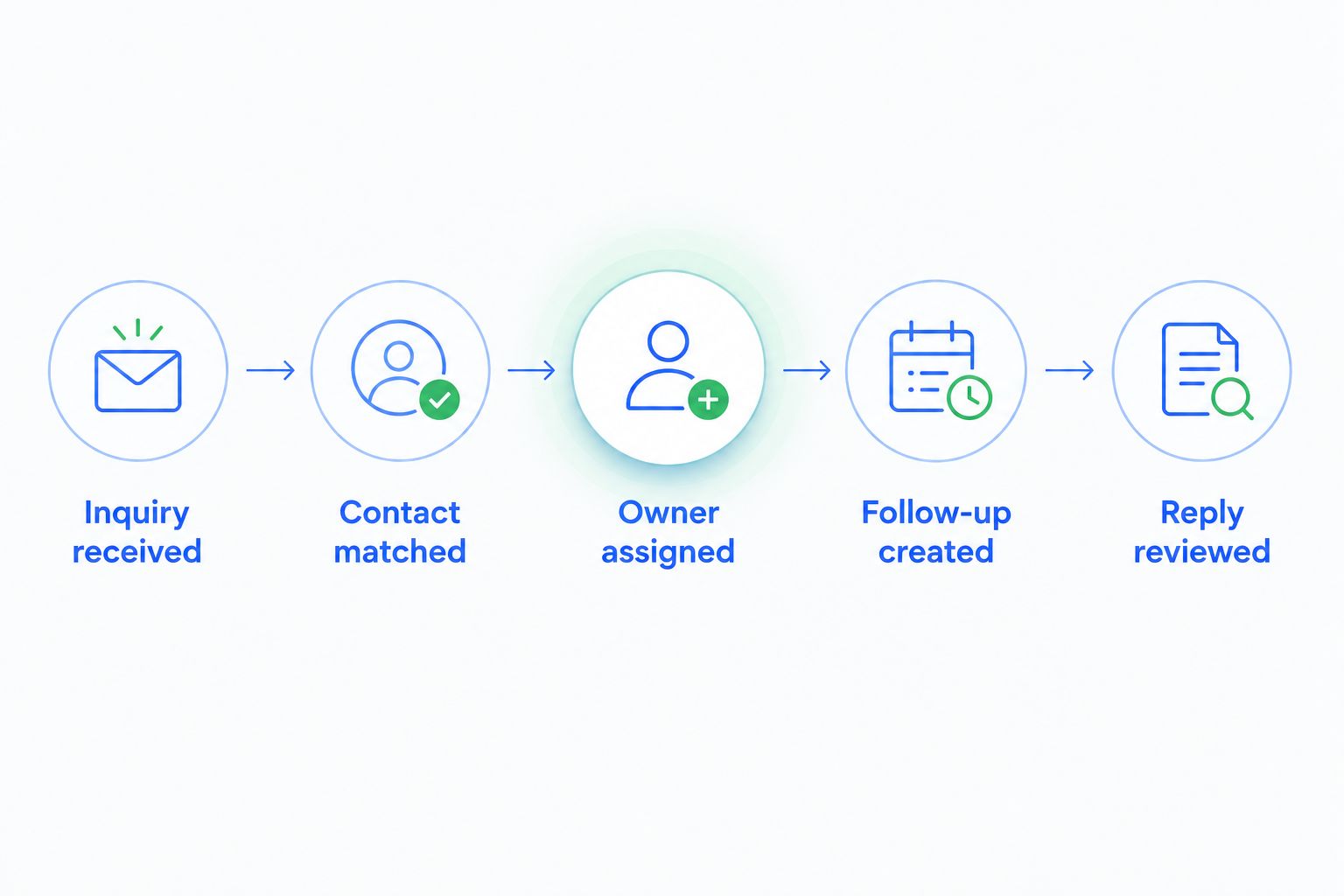
- Inquiry received: An eligible message enters the workflow.
- Contact matched: The sender is linked to the correct contact.
- Owner assigned: A named person becomes responsible for the next action.
- Follow-up created: A task records what that person should do.
- Reply reviewed: New customer activity changes the task or prompts stage review.
- Define the response target. As a starting policy, create the first follow-up task for the next business day; adjust that recommendation to your actual staffing and sales process.
- Define what completes the task. An owner's recorded response or another documented action should satisfy the rule. Simply receiving another email should not mark the owner's work complete.
- Add a reply condition. When a prospect responds, cancel or pause the no-response branch and create a task appropriate to the new request.
- Specify stage evidence. Move an opportunity only when the required event is recorded, such as an explicitly accepted meeting or a confirmed agreement—not merely because an email arrived.
- Add exit conditions. Closed opportunities, opt-outs, and messages requiring human review should leave the relevant automated follow-up path.
Expected result: Each active inquiry has an owner and an appropriate next action. Replies interrupt stale follow-ups, and pipeline changes follow defined evidence.
Archescrm can move opportunities based on customer interactions and configured workflows. That capability reduces manual updates, but the quality of the result depends on your stage criteria. Broad rules produce broad—and often unhelpful—stage changes.
For a 2026 rollout, keep automated email sending separate from task creation until both paths pass their tests. A wrong task is easier to correct than an irrelevant message already sent to a customer.
Update the workflow when a prospect replies
The adjacent workflow starts with an existing opportunity rather than a new inquiry. Its job is to replace an outdated next action with the one the customer's reply actually requires.
- Match the incoming reply to the existing contact and conversation. Use the identifiers available through your connection; do not assume that matching subjects establish the same sales opportunity.
- Find the active follow-up task. Cancel or update a pending no-response task when the reply makes that task irrelevant.
- Route the new request to the opportunity owner. If ownership changed, use the current CRM owner rather than whoever originally received the email.
- Update the conversation summary and next action. Keep questions, objections, and commitments distinguishable so the owner knows what needs a response.
- Request stage review when evidence is ambiguous. A request for information should not automatically become a qualified or won opportunity.
Expected result: The existing opportunity stays intact, the obsolete reminder stops, and the owner receives the next relevant task.
This variant improves follow-up discipline without requiring automatic outbound messages. Its limitation is straightforward: task automation still depends on the owner taking action and recording the result.
Test before you expand
Use 5 test scenarios before adding another mailbox. These are acceptance tests for your configuration, not performance claims or guaranteed product behavior.
| Test scenario | What should happen | What should not happen |
|---|---|---|
| New external inquiry | Contact lookup, appropriate opportunity handling, assigned task | Unowned sales record |
| Reply to an existing inquiry | Existing conversation updated, obsolete reminder stopped | Duplicate lead |
| Same message processed again | Existing processing recognized | Duplicate opportunity or task |
| Newsletter or unrelated message | Exclusion applied | Sales opportunity created |
| Reply associated with a closed opportunity | Review or defined closed-record handling | Opportunity silently reopened |
Record the outcome and the exception path for each test. A visible failure queue with an assigned owner is more useful than a workflow that appears successful while dropping messages.
Repeat these tests after changing permissions, matching logic, or stage rules. Your 2026 acceptance checklist should describe the expected records and tasks, not merely whether the connection is authorized.
Troubleshooting
The mailbox connects, but messages do not arrive
Check authorization, mailbox scope, and the eligible-message filter separately. Test the exact mailbox and message type used in production; success with a personal inbox does not validate a shared mailbox.
Replies create duplicate contacts or opportunities
Inspect the contact lookup and opportunity-selection rules. Use stable message identifiers to prevent repeat processing, and route ambiguous matches to review rather than creating a new record by default.
Follow-up reminders continue after a reply
Check whether the reply workflow updates the same task or opportunity used by the no-response workflow. Add the reply stop condition before the next reminder action, and retest a conversation with a pending task.
Opportunities advance after any email
Replace the broad email-received condition with a defined stage event. Keep informational replies and out-of-office messages out of automatic progression; require review when intent is unclear.
Tasks land with the wrong salesperson
Check whether routing uses the current opportunity owner, the mailbox owner, or a fixed assignee. Define a fallback for inactive or unassigned owners, then test an opportunity whose ownership has changed.
Customize your workflow
Once the Outlook path passes its tests, expand one component at a time. Add another mailbox, a different inquiry source, or an escalation rule—not all three in the same release.
Use the enterprise sales workflow automation guide when you need to extend ownership and follow-up rules across a larger team. Keep the same contact-matching rules across channels so additional activity enriches the record rather than fragmenting it.
Keep humans responsible for exceptions and automation responsible for repeatable steps. That division gives you cleaner records without asking a workflow to interpret every customer message as a sales decision.
FAQ
What does an Outlook CRM integration actually do?
An Outlook CRM integration connects eligible email activity with contact records, opportunities, and follow-up tasks. The exact behavior depends on the connection's supported triggers, actions, and permissions.
Does Archescrm have a native Outlook integration?
Confirm native Outlook connection support with Archescrm before starting. Its stated integration and API capabilities do not by themselves establish a native Outlook connector or shared-mailbox support.
Can I connect a shared Outlook mailbox to a CRM?
Connect a shared Outlook mailbox only through a route that explicitly supports shared-mailbox access. Verify Microsoft permissions and test that mailbox separately from any personal inbox.
Should every Outlook email create a new lead?
No. Match existing contacts first and limit lead creation to eligible sales inquiries, excluding newsletters, internal messages, and unrelated correspondence.
Can a customer reply automatically update my sales pipeline?
A reply can trigger a configured workflow, but it should not automatically establish a new sales stage. Require the customer action or evidence that defines that stage.
How do I stop automated follow-ups when someone replies?
Add a reply condition that cancels or pauses the pending no-response branch. Test that the reply and reminder workflows reference the same contact, opportunity, and task.
What should I test before connecting the whole team?
Test a new inquiry, an existing-thread reply, repeat processing, an excluded message, and activity on a closed opportunity. Confirm the resulting contact, owner, task, and stage behavior in each case.
One last thing
Test an email that should do nothing. A newsletter, internal message, or unrelated reply exposes whether your workflow understands its boundaries. Successful automation is not just the right action firing; it is the wrong action staying silent.