 Log in
 Start Free Trial

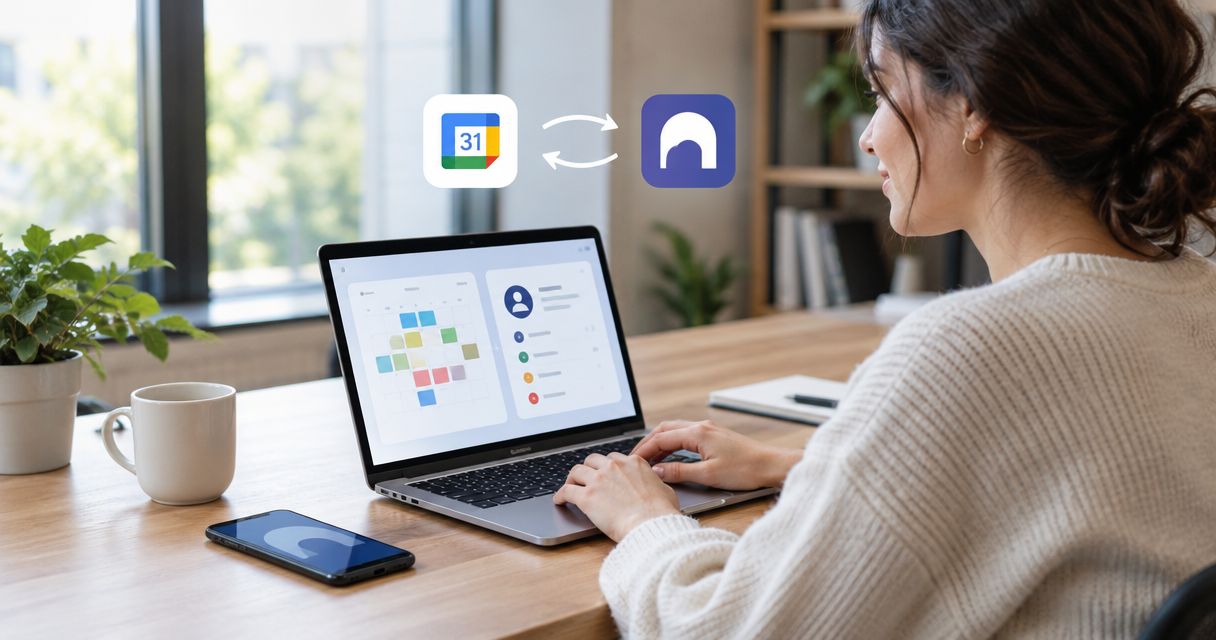
Instead of manually copying every meeting into your pipeline, build a Google Calendar CRM integration that matches events to contacts, updates meeting details, and assigns follow-up work. For Arches CRM, first confirm a supported calendar connection or API route, then implement the workflow below without treating a booked meeting as a completed sale.
- A Google Calendar CRM integration should connect meetings to contacts, owners, and follow-up tasks—not just copy event titles.
- Arches CRM suits growing sales teams that need pipeline management and follow-up automation in one place.
- Confirm the calendar connection, update handling, and cancellation behavior before enabling sales automation.
- Keep calendar scheduling separate from meeting outcomes and deal-stage decisions.
Why this matters
A meeting on the calendar does not tell your sales team what happens next. Someone still needs to identify the prospect, link the opportunity, record the outcome, and own the follow-up. Without those connections, your calendar and pipeline tell different stories.
Arches CRM brings contacts, conversations, tasks, and sales activity together. Arches CRM is best for growing sales teams that need CRM workflow automation alongside pipeline management. The trade-off is configuration: your team still needs clear rules for ownership, matching, and stage changes.
For your 2026 setup, define success as a correctly linked meeting with an accountable owner and a next action. A copied calendar entry alone is not the finish line.
Before you start
- Accounts and access: Have access to the relevant Google Calendar, permission to authorize the connection, and CRM access to manage contacts, opportunities, tasks, and workflows. For shared calendars, confirm the connecting account can read the event details your workflow needs.
- Connection and mapping: Confirm the supported Google Calendar connection or documented API route with your CRM administrator. Verify that it supports the required event fields, updates, and cancellations before building around it. Use the documented interface; the mapping labels below describe data, not product-specific buttons.
- The gotcha: An invitation is not proof of attendance. Also decide how to handle recurring meetings and events with several external guests before enabling automation; neither maps cleanly to a single contact or completed sales activity by default.
Use a dedicated test event without sensitive customer information. Keep customer-facing messages disabled until the contact match and owner assignment pass inspection.
Calendar source and event scope
Choose the source calendar
- Open Google Calendar in your browser. In the calendar list, identify the calendar that actually holds sales meetings, rather than assuming your primary calendar is the right source.
- Open that calendar's menu and select Settings and sharing. Review access without broadening permissions merely to make the integration work. Do not make a calendar public for CRM synchronization.
- In your supported connector or integration configuration, select the authorized Google account and the intended calendar. Follow its documented authorization process.
- Limit the initial scope to prospect meetings. Exclude internal planning, personal appointments, and blocked focus time using the filtering controls your connection actually provides.
- In Google Calendar, select Create, then Event. Add a recognizable test title, a controlled guest address, and a 30-minute appointment. Select Save.
Expected result: The integration receives the test appointment from the selected calendar without importing unrelated events. Inspect the received event data before configuring CRM actions.
For this 2026 rollout, start with one calendar and one accountable workflow owner. Add more calendars after the basic behavior works; otherwise, routing errors become harder to trace.
Define what qualifies
Use explicit eligibility rules. An external attendee can indicate a customer meeting, but it does not identify the right opportunity on its own. A consultant, supplier, or partner can also appear as an external guest.
Write down which meetings belong in the sales workflow and which require review. Avoid using event-title keywords as the only qualification rule: titles are editable, and naming habits differ across representatives.
Contact matching and meeting records
Map identity before activity
- Inspect the event identifier, source calendar, organizer, guest email addresses, start time, end time, time zone, and status returned by the supported connection.
- Match guest email addresses against CRM contacts. Exclude your own team addresses from prospect matching. Do not create contacts from every attendee automatically.
- Route unmatched addresses to review or a controlled lead-creation process. Assign responsibility for that queue so unmatched meetings do not disappear into an unattended list.
- Link the meeting to an opportunity only when the relationship is unambiguous. When a contact has several open deals, require a selection or a documented matching rule.
- Store the source event identifier with the CRM meeting reference wherever your supported data model permits. Include the source calendar in the matching key, and handle recurring occurrences explicitly.
Expected result: Your test event reaches the intended contact and owner. Reprocessing the same event updates its existing CRM representation instead of creating another meeting or task.
Keep the mapping small enough to audit:
| Source information | Workflow purpose | Guardrail |
|---|---|---|
| Source calendar and event identifier | Find the same meeting again | Do not match by title alone |
| External guest email | Identify the contact | Review unmatched or ambiguous guests |
| Start, end, and time zone | Schedule preparation and follow-up | Preserve the intended appointment time |
| Organizer | Inform owner routing | Do not assume organizer equals deal owner |
| Event status | Handle cancellations | Do not count cancellation as completion |
These are implementation requirements, not a claim that every connector exposes every field. If the connection cannot reliably identify and update the same event, stop before adding automated follow-ups.
Follow-up rules and acceptance tests
Separate scheduling from sales outcomes
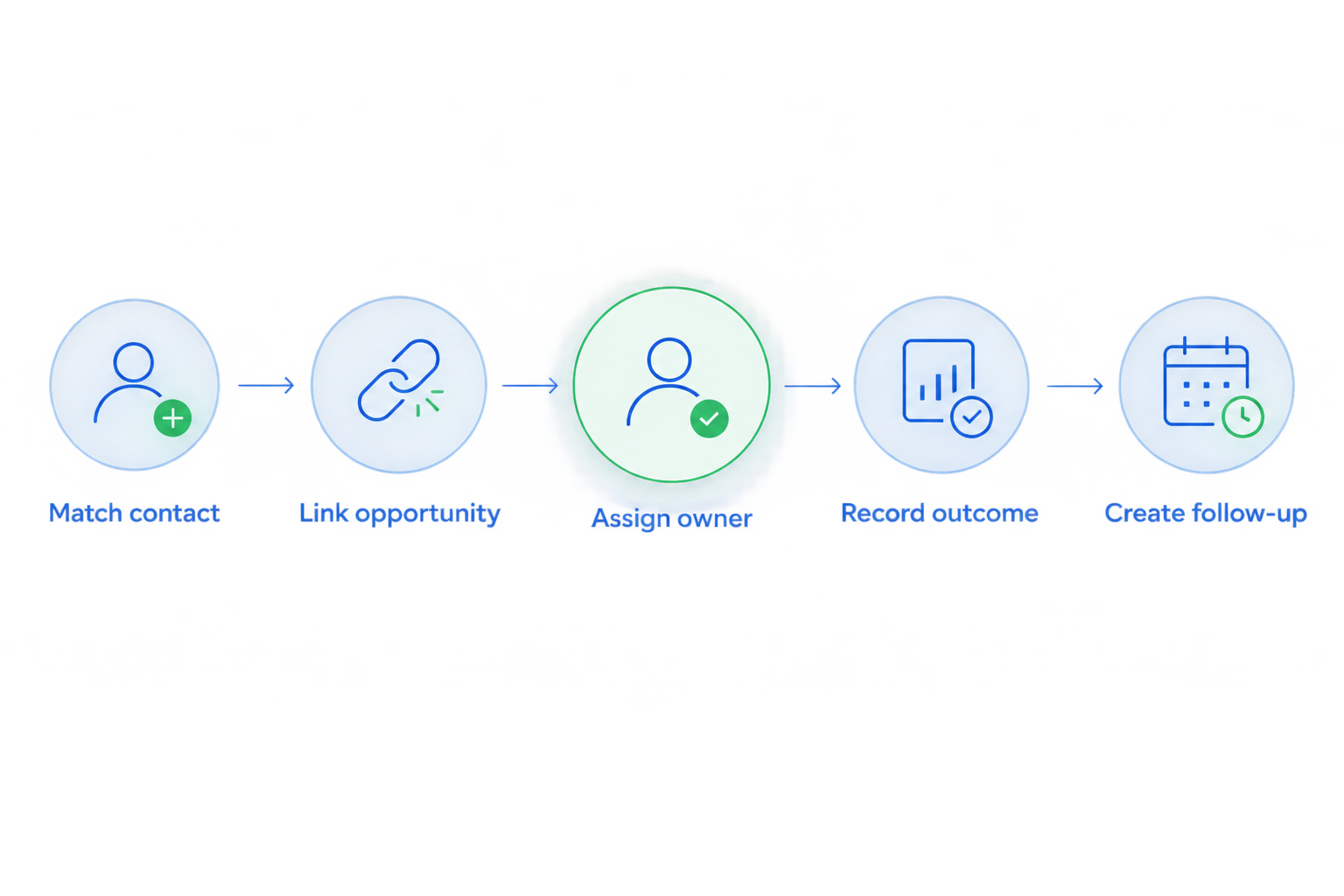
- On a qualifying new meeting, create or update the linked meeting record through the supported action. Assign the responsible salesperson using your ownership rule.
- Add a preparation task if your process needs one. As a starting policy, set it 24 hours before the meeting; define separate behavior for appointments booked inside that window.
- After the scheduled end, request an outcome from the owner. Do not mark the meeting as attended merely because its end time has passed.
- Create the next task from the recorded outcome. A completed discovery call, a no-show, and a canceled appointment need different actions.
- Keep automatic deal-stage movement disabled until the meeting workflow passes testing. Then attach stage changes to explicit business evidence, not the existence of an invitation.
Expected result: A booked appointment produces an owned preparation process. A recorded outcome produces the appropriate next action without falsely advancing the opportunity.
The broader workflow automation and manual data entry guide explains where repetitive updates belong in an automated process. For meeting workflows, the boundary is simple: automate copying and routing; require evidence for sales decisions.
Test the workflow before enabling messages
Run these acceptance tests for your 2026 deployment:
- New meeting: Create a qualifying appointment and verify the contact, owner, opportunity, and preparation task.
- Rescheduled meeting: Move the start time by 15 minutes. Confirm the same CRM meeting changes and any dependent task timing follows your rule.
- Canceled meeting: Cancel the test appointment. Confirm it does not remain in the upcoming-meetings workflow or generate an attendance-based follow-up.
- Repeated delivery: Reprocess the same event through the integration's supported testing method. Confirm that no duplicate meeting or task appears.
- Ambiguous attendee: Add another external guest. Confirm the workflow routes uncertainty to review rather than selecting an unrelated deal.
Only enable customer-facing actions after every applicable test passes. Keep a record of the expected behavior so another administrator can repeat the checks after a configuration change.
Whenever a meeting changes or gets canceled
A creation-only workflow handles the booking but misses the rest of the meeting lifecycle. Add update handling as a separate branch of the same design, using the stored source reference to locate the existing record.
| Workflow option | Best for | Advantage | Limitation |
|---|---|---|---|
| New-event capture | Initial booking handoff | Establishes contact and owner links | Does not address later changes |
| Update-aware processing | Teams that reschedule meetings | Keeps existing meeting details aligned | Requires stable matching and supported update handling |
| Outcome-based follow-up | Teams with defined post-meeting actions | Separates attendance from scheduling | Depends on a reliable outcome record |
Use update-aware processing for an ongoing sales workflow. New-event capture is a starting point, not a complete meeting process.
When a meeting moves, update the existing record and recalculate relevant preparation tasks. When it is canceled, stop actions that depend on the original appointment happening. Leave the opportunity open unless a separate sales decision says otherwise.
For recurring events, test the difference between editing one occurrence and editing the series. Do not deploy recurring-meeting automation until your integration preserves that distinction.
Keep meeting notes separate from calendar status
An event tells you when a conversation was scheduled. It does not establish what the buyer agreed to, which objections remain, or whether a proposal is due.
Evaluate AI note takers with CRM sync against the same contact-matching and ownership rules: synchronized notes need the correct customer record before they can support follow-up. Confirm participant consent requirements and review generated notes before using them to drive consequential sales actions.
Keep the 2026 workflow disciplined: calendar updates maintain scheduling facts; reviewed outcomes determine sales actions. Neither should silently overwrite the other.
Troubleshooting
Meetings appear more than once
Check whether the integration creates a new record on every delivery instead of finding the existing source event. Also check for overlapping workflows monitoring the same calendar. Use a stored source reference and an update-or-create process supported by your integration.
A meeting links to the wrong opportunity
Inspect the matching rule. Contact email alone cannot choose between several open opportunities belonging to the same person. Require an explicit deal association or route ambiguous matches to the owner for review; do not resolve ambiguity with the event title alone.
Appointment times differ between systems
Compare the source event's time zone, the integration's handling of timestamps, and the CRM user's display settings. Test across daylight-saving transitions when relevant. Preserve time-zone information rather than converting appointment times into unqualified text.
Canceled meetings still trigger follow-ups
Check whether the connection exposes cancellations and whether the workflow uses that status. Then inspect tasks or messages already queued before cancellation. If your integration cannot withdraw those actions, use an owner-review task instead of an unattended customer message.
Expected meetings never arrive
Verify the authorized account, selected calendar, access permissions, and eligibility filters. Inspect the integration's available run history or error records. Test a newly created event on the selected calendar before changing contact-matching rules; the failure can occur before CRM processing begins.
Customize your workflow
Once meeting capture is reliable, connect the surrounding sales work. Arches CRM supports lead management, workflow automation, communication tracking, and pipeline management; use those capabilities around a verified calendar connection rather than assuming the connection supplies every sales decision.
Expand in a controlled order:
- Before the meeting: Assign preparation work and surface the relevant customer conversation.
- After the meeting: Capture an outcome, assign the next action, and preserve the customer's stated commitments.
- After a no-show: Ask the owner to choose an appropriate rebooking action instead of treating the appointment as completed.
- Across the pipeline: Review opportunities with meetings but no recorded next action.
For your 2026 operating review, measure workflow quality before claiming time savings. Track unmatched meetings, duplicate records, unresolved outcomes, and follow-up tasks without owners. These measures show whether the process works; meeting volume alone does not.
FAQ
How do I set up a Google Calendar CRM integration?
Authorize a supported calendar connection, select the source calendar, match attendees to contacts, and configure meeting and follow-up actions. Test new events, changes, cancellations, and repeated delivery before enabling customer-facing automation.
Does Arches CRM have a native Google Calendar integration?
Confirm the supported Google Calendar connection with Arches CRM before setup. General integration and API capabilities do not establish a specific native calendar connector or its supported actions.
Can a calendar integration automatically move deals forward?
A calendar booking alone should not move a deal forward. Configure stage changes around a recorded outcome or another explicit sales milestone, rather than assuming a scheduled appointment took place.
What happens when a customer reschedules a meeting?
An update-aware workflow changes the existing linked meeting and adjusts dependent tasks according to your rules. This requires the connection to expose the change and preserve a reliable source-event reference.
Can I sync meetings from a shared Google Calendar?
Use a shared calendar only when the authorized account has the required access and the selected connection supports it. Verify that the event details needed for contact matching are actually visible.
How do I prevent duplicate contacts and meeting records?
Match attendees against existing contacts before creating records, and use a stable source reference to identify meetings. Route uncertain matches to review instead of creating another contact or opportunity automatically.
Does the end of a calendar event mean the meeting was completed?
No, an event ending proves only that its scheduled time has passed. Record attendance and the sales outcome separately before triggering outcome-based follow-up.
One last thing
The most revealing test is changing a meeting after its follow-up has already been queued. A workflow that handles the first invitation but ignores later changes can leave your salesperson acting on an obsolete appointment. Test the change, not just the booking.