
 Log in
 Start Free Trial


Instead of downloading Facebook leads and copying them into your sales system, build a Facebook Lead Ads CRM integration that retrieves each submission, checks for duplicates, and assigns the next action in Arches CRM. This 2026 guide covers an API-based workflow, the access you need, and the tests to complete before enabling follow-up.
- Build your Facebook Lead Ads CRM integration around lead retrieval, duplicate checks, ownership, and follow-up.
- Arches CRM suits growing sales teams that need lead management and workflow automation together.
- Confirm Meta permissions and supported CRM API operations before configuring the connection.
- Test repeat submissions and failed deliveries before enabling customer messages.
Why this matters
A captured lead is not an assigned sales conversation. A form submission still needs a usable contact record, an owner, and a next action before your team can respond consistently.
Arches CRM is best for growing sales teams that need lead management and follow-up automation in one place. Its sales CRM brings contacts, conversations, tasks, and pipeline activity together; the integration must deliver the right information into that system.
Start with the destination: Arches CRM supports integrations and APIs, but confirm the specific authentication method and record operations available to your account. This guide describes an implementation pattern, not a verified native Facebook connector or a particular connector's interface.
For your 2026 rollout, separate successful data delivery from successful follow-up. A record reaching the CRM proves delivery; an assigned task and appropriate response prove the sales workflow works.
Before you start
- Meta access: Have access to the Facebook Page, its instant forms, and the relevant lead data. For an API implementation, arrange the Meta app permissions, tokens, and webhook configuration required by Meta's current documentation.
- CRM and integration access: Have CRM administration access and an integration service or developer who can receive events, retrieve lead details, and call documented CRM operations. Confirm contact lookup, record creation, record updates, and your chosen task or workflow action before proceeding.
- The non-obvious gotcha: A Meta lead notification is not the completed form response. Your integration must retrieve the lead details using the supplied lead identifier; receiving the notification alone does not give the salesperson a usable lead.
Keep API credentials out of contact fields, workflow notes, and shared spreadsheets. Store credentials in the integration service's protected connection settings or secret storage, and restrict who can view customer data.
Lead delivery configuration
Choose the delivery method
Choose a delivery method before mapping fields. Both approaches below require authorized access to Meta lead data and supported write operations at the CRM destination.
| Delivery method | Best for | Advantage | Limitation |
|---|---|---|---|
| Webhook-triggered retrieval | Teams prioritizing prompt lead handoff | Starts processing when Meta sends a lead event | Requires an accessible receiver, permissions, and failure recovery |
| Scheduled API retrieval | Teams needing a reconciliation or recovery process | Checks for submissions missed by the primary route | Adds a delay determined by the schedule and requires deduplication |
Use webhook-triggered retrieval as the primary route when your implementation supports it. Use scheduled retrieval for reconciliation rather than treating a webhook as proof that every submission reached sales.
Neither route removes the need for monitoring. A valid notification can still be followed by a failed retrieval or a rejected CRM write.
Configure the source
- Identify the Facebook Page and instant form that will feed the workflow. Record their identifiers in your integration configuration rather than relying only on names.
- Configure the authorized lead-event subscription using Meta's current setup instructions. For a custom implementation, complete the required webhook verification and request validation.
- Submit a test lead through Meta's Lead Ads Testing Tool. Use Create lead for the selected Page and form.
- Retrieve the corresponding form response using the lead identifier from the event. Inspect the returned field names and values before building the mapping.
- Save the source lead identifier with the processing record. Use that identifier to recognize a repeated delivery of the same submission.
Expected result: Your integration receives a test event and retrieves the matching form answers. A notification without retrieved answers is an incomplete test.
For your 2026 setup, retain a sanitized example payload for each form. Remove personal data before sharing examples with anyone who does not need access to the original submission.
Contact mapping and duplicate controls
Define the destination data
- List the information a salesperson needs: name, contact details, inquiry, source, and ownership. Include only fields collected by the form or supplied by a documented source.
- Match each form answer to a supported CRM field. Treat these as mapping concepts, not assumed interface labels: contact name, email address, phone number, inquiry details, and lead source.
- Preserve the Meta lead identifier and form identifier in supported fields or in your integration's processing log. Keep enough information to trace the CRM record back to its submission.
- Set rules for incomplete answers. Route a submission with no usable contact method for review instead of creating a follow-up task that nobody can complete.
- Preserve permission-related answers accurately. A submitted phone number is not permission for every kind of automated message.
Expected result: A test contact contains the submitted answers, a recognizable source, and enough reference information to investigate a failed handoff.
Do not map blank answers over existing customer information. Decide explicitly whether a new submission should update a field, add a note, or leave the existing value unchanged.
Separate duplicate events from returning prospects
- Check the source lead identifier against the processing log. If that exact submission already completed successfully, stop the repeated event without creating another task.
- Search for an existing contact using your approved matching rules and supported CRM lookup operations. Normalize email formatting and phone formatting before comparison.
- Update a confirmed match; create a contact when there is no match. Send ambiguous matches to review rather than merging different people automatically.
- Decide separately whether the submission needs a new opportunity. An existing customer asking about another service is not the same case as a repeated delivery of an old event.
Expected result: One repeated event produces one completed handoff, while a genuine new inquiry remains visible even when the person already exists.
The distinction matters: duplicate contact handling concerns identity, while duplicate-event handling concerns whether the same action has already run. Your workflow needs both controls.
Ownership and follow-up configuration
Define the handoff
- Assign an owner using an agreed rule, such as territory or inquiry type. Define a fallback owner for submissions that do not match the rule.
- Create or update the relevant opportunity through supported operations. Put an unreviewed inquiry into the stage your team uses for new leads, not a qualified stage.
- Create a follow-up task or start a configured CRM workflow. Include the inquiry context so the salesperson does not need to reopen the advertising account.
- Set a response target. For example, use 15 minutes during staffed hours as an initial operating target, not a promised integration speed or an industry benchmark.
- Define stop conditions before enabling messages: a reply, an opt-out, a booked conversation, or manual intervention should prevent inappropriate continuation.
Expected result: The salesperson sees an owned inquiry and a clear next action. The workflow does not depend on somebody noticing a notification in another system.
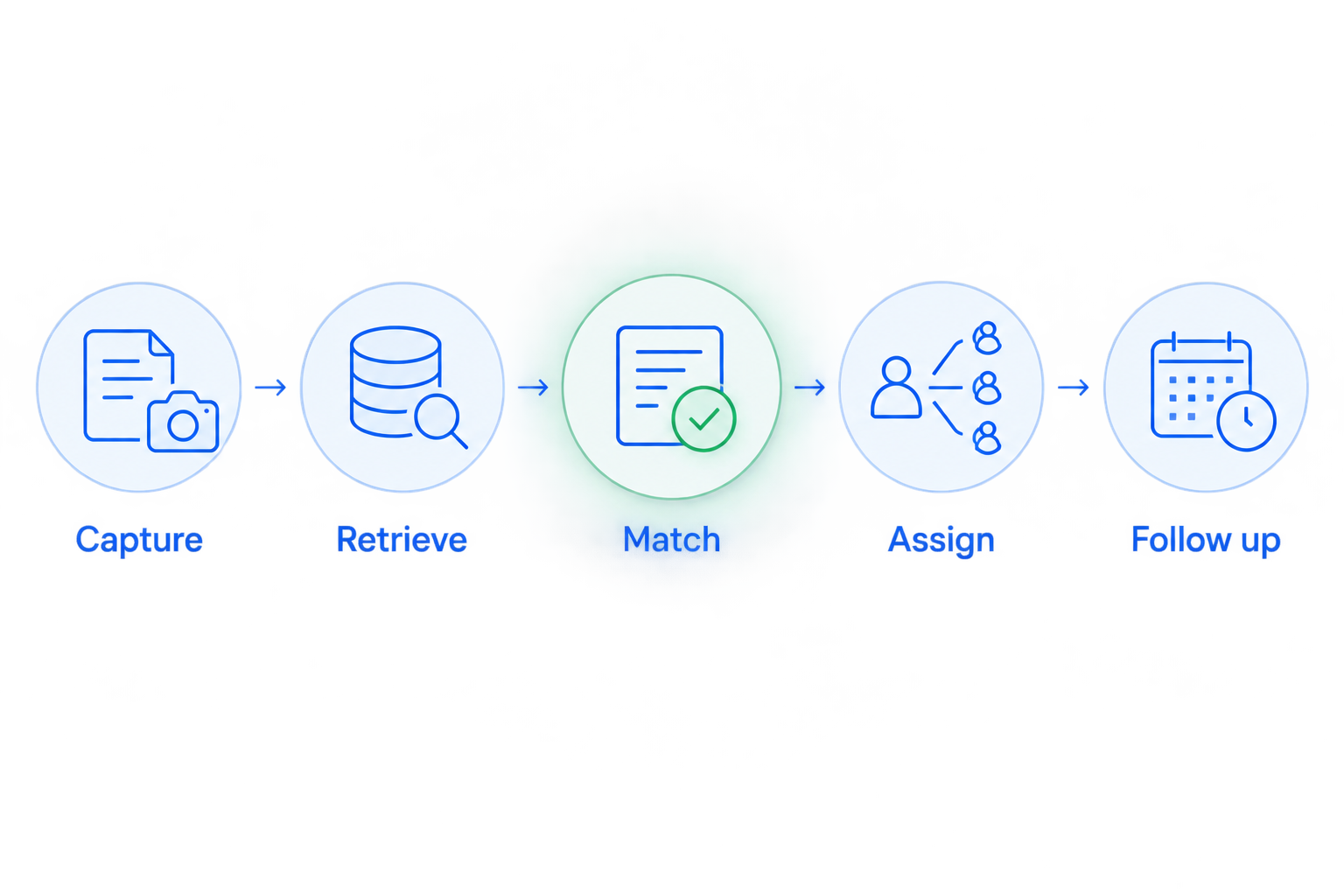
The handoff follows a simple sequence: Capture, Retrieve, Match, Assign, Follow up. Keep those responsibilities separate so a failure identifies the broken stage rather than producing a generic error.
Run acceptance tests
- Process 3 test submissions: a new person, an existing contact, and an incomplete response. These are recommended test cases, not a platform requirement.
- Replay one completed event. Confirm that it does not create another opportunity, task, or message.
- Simulate a failed CRM request in your test environment. Confirm that the integration records the failure and can resume without duplicating completed work.
- Compare submission time, successful CRM write time, and first assigned action. Use the timestamps to locate delays rather than assuming the entire workflow is slow.
- Enable customer-facing messages only after ownership, matching, and stop conditions pass inspection.
Expected result: Your 2026 acceptance test proves that normal submissions, repeat events, and failures produce the intended outcome.
Second workflow: reconcile missed leads
Webhook delivery and reconciliation solve different problems. The first starts the handoff; the second finds submissions that have no successful processing record.
- Schedule an authorized check for recent form submissions. As an example operating choice, check every 5 minutes if your service, API permissions, and applicable request limits support that schedule.
- Compare retrieved lead identifiers with the processing log. Send only unprocessed submissions into the existing mapping and matching process.
- Retry failed stages rather than restarting every downstream action. A contact already created does not need to be created again because task creation failed.
- Notify the integration owner when retries remain unsuccessful. Include identifiers and error details, not unnecessary personal information.
Expected result: A missed event becomes a recoverable exception rather than an invisible gap between advertising and sales.
Keep acquisition separate from audience management. If you also sync subscribers to custom audiences, define audience eligibility and removal rules separately from sales ownership: an advertising audience membership does not establish permission for an automated sales message.
Do not let a reconciliation job overwrite a salesperson's progress. Preserve current ownership and pipeline state unless the new submission provides a specific, approved reason to change them.
Troubleshooting
A test event arrives, but the lead fields are empty
Inspect the lead-details retrieval request, not just the webhook receiver. Confirm that it uses the event's lead identifier and credentials authorized to access that Page's leads.
Also inspect the actual returned field names. Form questions and destination fields do not automatically share the same labels.
The right account cannot retrieve the Page's leads
Check Page access, lead access, app permissions, and token status against Meta's current requirements. Access to an advertising account alone is not a substitute for checking the permissions used by the integration.
Retest retrieval before changing CRM mappings. A destination field change cannot fix a source authorization failure.
One submission creates multiple tasks
Check whether both primary delivery and reconciliation trigger the same downstream actions. Apply the source-identifier check before task creation, and record completion at each stage.
Do not fix this by blocking all submissions from an existing email address. That would also hide genuine repeat inquiries.
A changed form sends incomplete records
Compare the new response with the saved field mapping. Update the mapping for changed questions and test the revised form before relying on it for live follow-up.
For 2026 campaign changes, treat a replacement form as a configuration change requiring a fresh acceptance test.
Leads arrive, but nobody follows up
Inspect the owner, task, and notification outcomes separately. Confirm that unmatched routing rules reach the fallback owner and that failures generate an alert.
A populated contact record is not evidence of an assigned next action. Audit the handoff itself before adding more reminders.
Customize your workflow
Expand the workflow only after the basic handoff works. Add routing by submitted inquiry type, separate workflows for distinct requests, and exception alerts for incomplete data.
Arches CRM supports workflow automation and AI-assisted pipeline movement based on customer interactions and configured workflows. Keep a new form submission separate from a qualification decision; receiving an inquiry does not establish buying intent or a completed sales milestone.
The benefit is less manual updating across contacts, conversations, and tasks. The limitation is configuration dependence: incorrect mapping or ownership rules still send the wrong information to the wrong place.
FAQ
How do I connect Facebook Lead Ads to Arches CRM?
Use an authorized integration that retrieves Facebook form submissions and writes them through supported CRM operations. Confirm authentication, contact lookup, record creation, and follow-up actions before configuring the connection.
Does this workflow require a native Facebook connector?
No, this workflow describes an API-based integration pattern rather than a verified native connector. Your integration service or developer must confirm support for each required source and destination operation.
Does a Facebook lead webhook contain every form answer?
No, the lead notification provides an identifier that your integration uses to retrieve the lead details. Test both notification delivery and authorized retrieval before mapping contact fields.
How do I stop duplicate leads from creating duplicate tasks?
Check the source lead identifier before running downstream actions, then use separate contact-matching rules. This prevents repeated events from creating tasks without suppressing a returning prospect's new inquiry.
Can I automatically text everyone who submits a Facebook form?
Do not treat a submitted phone number as permission for every automated text. Confirm the applicable consent requirements and messaging rules, preserve the relevant evidence, and honor opt-outs.
What happens when a lead fails to reach the CRM?
A monitored integration records the failed stage and retries it without repeating completed actions. A scheduled reconciliation process can also identify submissions with no successful processing record.
How do I know the integration is ready for live campaigns?
Verify a new contact, an existing contact, an incomplete response, a repeated event, and a failed request. Enable customer messages only after matching, ownership, task creation, and stop conditions behave correctly.
One last thing
Test the second submission, not just the first. A new contact proves creation works; the same person submitting again reveals whether your workflow preserves history, recognizes a new inquiry, and avoids duplicate follow-up.
Keep that repeat-submission check in your 2026 release checklist whenever you change a form or follow-up rule.