
 Log in
 Start Free Trial

Yes, a CRM can sync contacts from LinkedIn automatically when an authorized integration supports the specific data and action you need. That does not mean it can copy your entire connection list, retrieve every email address, or keep every profile updated. In 2026, verify the source, permissions, sync direction, and update behavior before you connect your sales workflow.
- Can a CRM sync contacts from LinkedIn automatically? Yes, when an authorized integration supports the required data transfer.
- LinkedIn lead-form capture, contact imports, and ongoing profile updates are different workflows; verify each separately.
- Arches CRM supports lead management and follow-up automation; confirm LinkedIn-specific integration support before choosing a connection method.
- Reject scraping-based shortcuts and test duplicate handling before enabling automatic follow-up.
Can a CRM sync contacts from LinkedIn automatically?
Yes—but automatic contact capture is not the same as continuous contact synchronization. A connection that creates a CRM record after a form submission does not necessarily update that record when someone changes jobs.
Start by naming the event you want to automate. Then separate getting data into the CRM from acting on it; CRM workflow automation that reduces manual data entry addresses the second problem, not whether LinkedIn permits the first.
| Connection method | Best for | Main advantage | Main limitation |
|---|---|---|---|
| Authorized native integration | Teams whose exact workflow is supported directly | Connects through the CRM's supported setup | Supported fields and actions still need verification |
| Authorized connector or middleware | Teams connecting an approved source to CRM workflows | Separates data transfer from downstream automation | Both systems must permit the required action |
| File export and import | A controlled, occasional transfer of permitted data | Lets you inspect records before import | Does not provide ongoing synchronization |
| Browser scraping or unauthorized extraction | Not recommended | Appears to reduce manual copying | Conflicts with LinkedIn's restrictions on unauthorized scraping |
The right question for a 2026 evaluation is not simply whether an integration exists. Ask whether it creates, updates, matches, and routes the records your team actually uses.
Why this matters
A lead arrives, a record appears, and everyone assumes the handoff worked. But if the record has no owner or next action, automatic capture has only moved the follow-up problem somewhere else.
Your goal is an actionable contact, not a larger database. Before enabling automation, decide who owns the lead, which information is required, and what should happen when the same person already exists in your CRM.
A successful sync leaves the sales team knowing who to contact and why. It should also make failures visible instead of leaving you to discover missing leads later.
Authorized native integration: verify the exact workflow
Best for: teams whose required LinkedIn workflow is explicitly supported by their CRM. A native integration belongs in your evaluation when its documentation names the source data and the actions it performs.
Ask for a demonstration using your intended source. LinkedIn Lead Gen Forms, profile information, and sales activity are different categories of data; support for one does not establish support for the others.
Check these details before approval:
- Trigger: What event starts the transfer?
- Fields: Which values are actually supplied?
- Direction: Does information move into the CRM, back to LinkedIn, or both?
- Updates: Does the connection update existing records or only create new ones?
- Failures: Where can an administrator see rejected or incomplete transfers?
The advantage is a directly supported connection. The limitation is scope: a native integration can still be unsuitable if it supports the wrong event or omits a field your routing rules require.
For a 2026 buying decision, treat a working demonstration as stronger evidence than an integration logo. A logo does not explain what happens after authorization expires or a record fails validation.
Authorized middleware: connect permitted events to CRM actions
Best for: teams that need a supported source event to trigger a separate CRM workflow. Middleware can pass data between systems when the relevant permissions and integration capabilities exist.
That qualification matters. An automation platform cannot grant access that LinkedIn has not authorized, and a CRM API does not establish permission to retrieve LinkedIn data.
Specify the workflow in plain language: when an authorized source supplies a lead, find the corresponding CRM contact, update permitted fields, and assign the next action. Each part needs its own supported capability.
The advantage is control over the handoff between applications. The drawback is an additional place to inspect when something stops working, so assign responsibility for the connection before you activate it.
Avoid building a workflow around an assumed email address. If the source does not supply an email, your process needs another permitted matching method or a review step—not an invented value.
File import: useful for a snapshot, not ongoing synchronization
Best for: teams making an occasional, controlled transfer of data they are permitted to use. A file import lets you review columns, remove irrelevant records, and decide which fields belong in the CRM before making changes.
Its limitation is straightforward: the file represents a snapshot. Importing it does not create a live connection or establish that future profile changes will reach your CRM.
Before importing, compare the file against your CRM's requirements. Preserve existing customer information unless you have a clear reason and rule for replacing it.
A file containing names and profile references is also not necessarily an outreach-ready list. Check what information you actually have and whether your intended use is permitted before assigning follow-up tasks.
Use an import for a controlled transfer; require an integration for ongoing automation. Do not label a recurring manual upload as continuous sync.
Why LinkedIn-to-CRM synchronization varies
In 2026, evaluate these factors separately rather than accepting a broad promise of automatic sync:
- Source data: A submitted lead form and a profile are different sources with different access requirements.
- Authorization: The connection needs permission for the exact data and action, not just a successful login.
- Field mapping: Source values must match the CRM fields your team uses for ownership, qualification, and communication.
- Record matching: An update needs a reliable way to identify the existing person without merging unrelated contacts.
- Trigger and direction: Creating a contact, refreshing a field, and sending changes back are distinct operations.
- Error handling: Missing fields, revoked access, and rejected updates need a visible review process.
These factors also explain why two integrations described as LinkedIn sync can behave differently. Write your acceptance criteria around the sales process, then compare the connections against those criteria.
How do you test a LinkedIn-to-CRM workflow before launch?
Use a controlled test before connecting the workflow to automatic outreach. These steps are an acceptance checklist, not a claim that every connector supports every action.
- Define the source. Name the authorized event or dataset that should create or update a contact. Avoid vague instructions such as importing LinkedIn leads.
- Map the fields. Identify required CRM values and decide what happens when the source leaves a value blank. Keep the data's origin visible.
- Match existing contacts. Test the matching rule against both a new person and an existing contact. Do not rely on a shared name alone.
- Assign ownership. Confirm that the contact reaches the correct salesperson or review queue. A successful transfer without an owner is an incomplete handoff.
- Verify follow-up. Check the task, reminder, or sequence created after the transfer. Confirm that unsuitable or incomplete records do not trigger outreach.
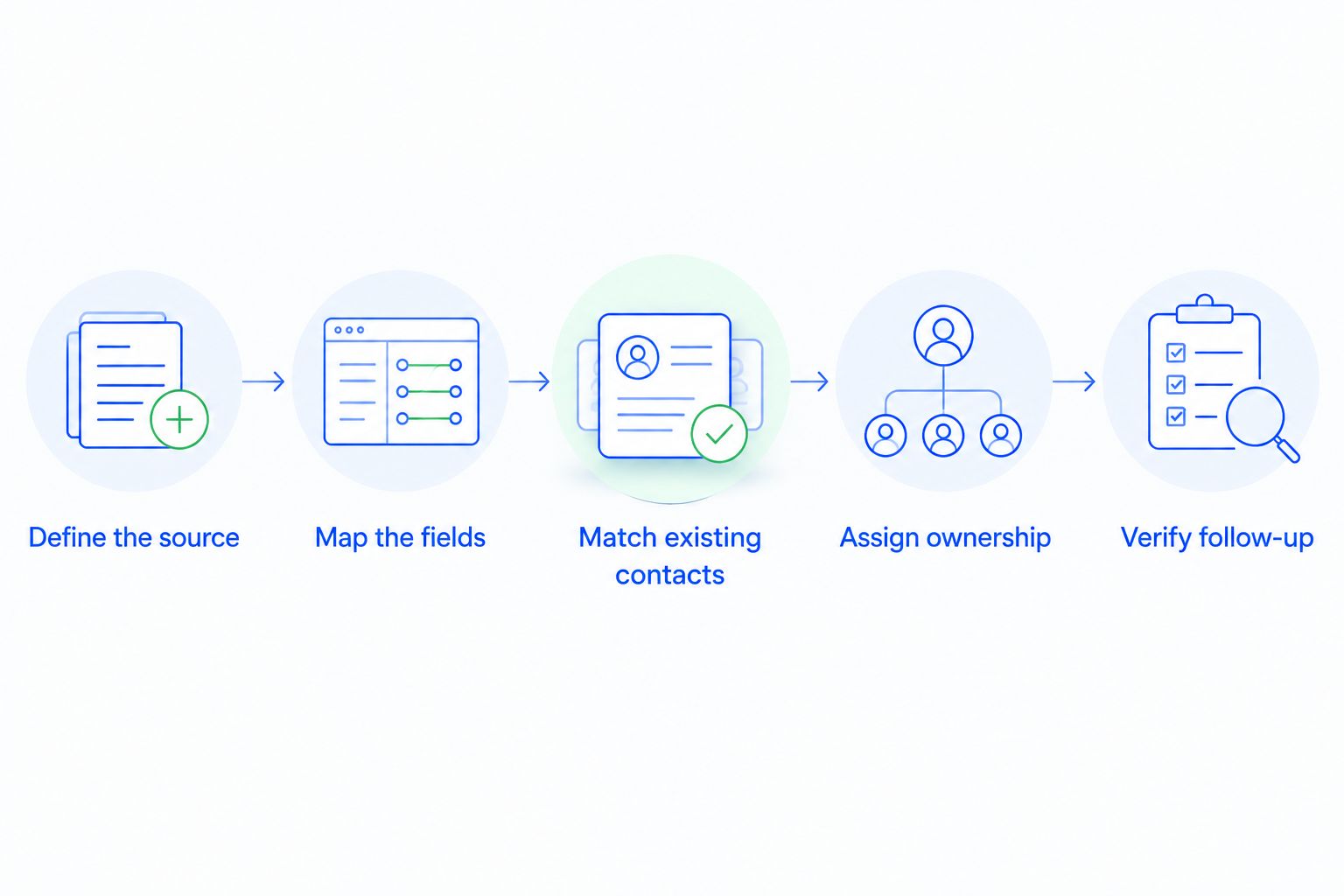
Run the same input through the process again to inspect repeat handling. The result should follow your documented rule for an existing contact rather than silently creating another record.
Also test an incomplete submission. You need to know whether the workflow rejects it, routes it for review, or creates a record with missing information before real leads depend on it.
What happens when API access is limited?
Limited access should narrow the workflow, not become an excuse to bypass the source platform's controls. If the permitted connection supplies a new lead but not ongoing profile changes, build around lead capture and describe it accurately.
The same boundary applies to AI agents with limited API access: distinguish actions an agent is authorized to perform from actions that require additional access or human input. Drafting a follow-up from an existing CRM record is different from obtaining new LinkedIn data.
If a required field is unavailable, choose a supported alternative or route the record for review. Do not treat automation as evidence that the underlying data collection is permitted.
For your 2026 rollout, document the fallback beside the normal workflow. The person responsible for sales operations should know how to pause processing, inspect failures, and resume work without duplicating contacts or messages.
Where does Arches CRM fit after contact capture?
Arches CRM is best for growing sales teams that need lead management and automated follow-up in one CRM. Its stated capabilities include contact management, sales pipelines, workflow automation, and customer communication across email, WhatsApp, SMS, and calls.
The platform also provides integrations and APIs. Those capabilities do not, by themselves, establish a specific LinkedIn connection, so confirm the supported source, fields, and update behavior before selecting an integration.
Once permitted contact data reaches the platform, evaluate Arches CRM against the work your team needs next: assigning prospects, creating reminders, organizing conversations, and tracking opportunities. The benefit is keeping those sales activities together; the constraint is that LinkedIn-specific access still requires separate verification.
Do not make automatic pipeline movement depend solely on a newly imported contact. Define which customer interaction or configured workflow should justify a stage change, and test that rule against your actual sales process.
Can a CRM import all my LinkedIn connections automatically?
Do not assume a CRM can automatically import your entire LinkedIn network. A supported connection for lead forms or sales activity does not establish unrestricted access to all connections and profile fields.
Ask the provider to identify the authorized source and demonstrate the exact transfer you need. If the answer changes from automatic sync to a file upload, evaluate it as an import instead.
Will LinkedIn profile changes update existing CRM contacts?
Profile updates require explicit support for ongoing updates and record matching. Creating a contact once does not prove the integration monitors later changes to job titles, companies, or other fields.
Ask which changes are supplied and what happens when the CRM already contains a different value. Your sales team's verified information should not be overwritten without an agreed rule.
Does syncing a contact give permission to send sales messages?
Syncing a contact does not by itself establish permission for every outreach channel. Data access, platform authorization, and the rules governing your intended communication are separate checks.
Keep automatic outreach disabled until you have verified the source, intended use, applicable requirements, and suppression rules. Contact capture should not silently become permission to send messages.
FAQ
Can a CRM sync contacts from LinkedIn automatically?
Yes, when an authorized integration supports the specific source data and transfer you need. Confirm whether it creates contacts, updates existing records, or performs both actions.
Is importing LinkedIn contacts the same as syncing them?
No. Importing transfers a snapshot of data, while ongoing synchronization requires a connection that supports subsequent events or updates.
Can LinkedIn Lead Gen Form submissions go into a CRM?
Yes, supported integrations can transfer LinkedIn Lead Gen Form submissions into a CRM. Verify the required permissions, mapped fields, and handling of existing contacts before enabling the workflow.
Will a LinkedIn sync give me every contact's email address?
No. A sync can transfer only the fields its authorized source supplies; do not assume an email address will be included for every person.
Is a browser extension enough to prove a LinkedIn integration is authorized?
No. The connection method alone does not establish authorization, and LinkedIn restricts unauthorized scraping. Verify how the extension obtains data and what permissions support that access.
Does Arches CRM automatically sync LinkedIn contacts?
Confirm LinkedIn-specific support with Arches CRM before relying on an automatic connection. Its stated capabilities include integrations, APIs, lead management, and workflow automation, but those do not establish a particular LinkedIn sync.
How do I stop duplicate contacts during a sync?
Define and test a matching rule before enabling the workflow. Check repeat submissions, missing identifiers, and conflicting field values instead of matching people by name alone.
One last thing
Test the second arrival of the same lead, not just the first. The initial transfer proves that data can enter your CRM; the repeat transfer reveals whether the workflow recognizes an existing relationship.
Make that a launch requirement in 2026. A contact integration earns its place when it preserves context, assigns responsibility, and creates the right next action—not when it merely adds another name.