
 Log in
 Start Free Trial

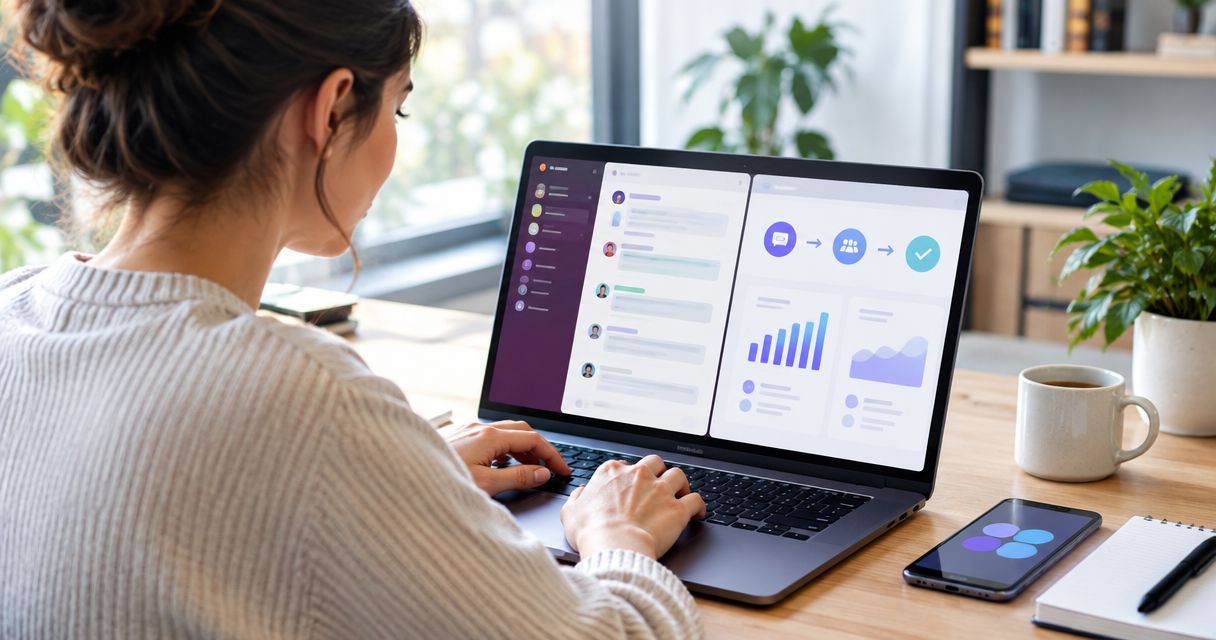
Instead of copying deal updates into Slack, build a slack crm integration that sends a focused alert when a CRM opportunity needs action, with its owner and next step attached. This 2026 guide covers the connection requirements, alert rules, testing, and a separate Slack-originated update workflow without treating chat as your sales database.
- A useful slack crm integration sends actionable deal alerts, not every record edit.
- Archescrm supports CRM workflow automation and APIs; confirm the exact event and connection method before setup.
- Keep opportunity ownership and pipeline stages in the CRM; use Slack for visibility and coordination.
- Test duplicate delivery, missing owners, and channel access before enabling production alerts.
Why this matters
A deal changes stage. Someone posts an update in Slack. Another person asks who owns the follow-up, and the answer stays buried in a thread.
The fix is not another notification. It is an alert connected to a clear responsibility and an accurate opportunity record.
Archescrm is best for growing sales teams that need CRM workflow automation and customer conversations in one place. Slack serves a different purpose: sharing the change with people who need to act. The CRM remains the record of the deal.
For your 2026 rollout, separate notification delivery from pipeline changes. A successful Slack message proves delivery; it does not prove that a salesperson completed the follow-up.
Before you start
- Access and permissions: Have permission to configure CRM workflows or API access, plus permission to install a Slack app or obtain an approved webhook. Identify who will maintain the connection.
- Connection contract: Confirm the exact CRM event source, authentication method, record identifier, and delivery mechanism in the current documentation. General API support does not establish a native Slack connector, an outbound webhook feature, or a particular automation trigger.
- The non-obvious gotcha: A Slack incoming webhook belongs to its authorized conversation. Treat the webhook URL as a secret, check channel membership, and agree which customer details are safe to post before sending a real deal.
Do not begin with live customer records. Prepare a test opportunity with a named owner and fictional customer details, then choose 1 pilot channel for the initial rollout.
Choose the alert rule before connecting anything
Start with a meaningful stage transition, not every opportunity edit. A change to an internal note should not produce the same notification as a deal entering a handoff stage.
These are workflow choices, not claims about prebuilt connector options:
| Alert approach | Best for | Advantage | Limitation |
|---|---|---|---|
| Selected stage transitions | Sales teams coordinating handoffs | Connects a message to a defined action | Requires reliable previous-stage information or stored state |
| Every opportunity update | Temporary connection diagnostics | Makes received updates visible during testing | Creates noise and duplicate-looking alerts |
| Follow-up exceptions | Managers handling overdue work | Focuses attention on unresolved tasks | Requires a defined deadline and completion check |
Use selected stage transitions for the first production workflow. Keep broad update alerts inside the test channel, and add exception alerts only after task ownership is consistent.
Write the rule in plain language: when an opportunity enters the chosen stage, notify the responsible team with the assigned owner and required next action. Keep that sentence beside the configuration while you build.
Configure the deal-alert workflow
The configuration below describes the required logic. CRM and middleware labels depend on the supported connection you select; the Slack labels are identified explicitly where applicable.
Event source and opportunity mapping
- Verify the event source. Establish whether your supported connection provides a stage-change event, a general record-update event, or an API response that your integration checks. Do not assume these methods are interchangeable.
- Identify the opportunity. Map a stable record identifier rather than using the deal name as a unique key. Different opportunities can share a name.
- Map the useful context. Include the opportunity name, current stage, assigned owner, next action, and relevant deadline. Include a record link only when the CRM or its documentation supplies the correct link format.
- Define missing-data handling. Route an unassigned opportunity to an agreed review queue or responsible manager. Do not silently drop the alert because an owner field is empty.
- Confirm change detection. Use previous-stage data when supplied. Otherwise, maintain prior state in the integration layer before claiming to detect a transition.
Expected result: A test event resolves to the correct opportunity and owner, with enough context to explain the required action. An unchanged stage does not count as a new transition.
For a 2026 implementation, record the supported event names and authentication method in your operating notes. Those details make later repairs possible without reconstructing the setup from chat history.
Slack destination and message delivery
- Create or select an approved Slack app for the webhook approach. In the app settings, open Incoming Webhooks and enable Activate Incoming Webhooks.
- Select Add New Webhook to Workspace, choose the intended conversation, and select Allow. Workspace policies can require administrator approval before installation.
- Store the generated webhook URL in the integration's protected credential storage. Never paste it into an opportunity note, public document, or Slack message.
- Configure the integration to send an HTTP POST request to that URL with a JSON message body. For a simple message, Slack accepts a
textproperty; map the approved deal context into its value. - Send a fictional test message and inspect the destination conversation. Check readability, recipient access, and whether sensitive fields have been excluded.
Expected result: The pilot channel receives a readable message from the app. A rejected request remains a failed delivery in your integration rather than being recorded as successful.
Use this message structure as a content template, not as CRM field syntax:
- Deal: opportunity name
- Change: previous stage and current stage
- Owner: assigned salesperson
- Next action: required follow-up
- Due: relevant deadline, when present
Transition filters and duplicate protection
- Limit the workflow to the intended pipeline and target stage. Exclude unrelated updates before message delivery.
- Build a delivery identifier from the source event identifier when available. Otherwise, combine the opportunity identifier with a reliable transition version or timestamp supplied by the source.
- Store delivery status outside the Slack message. A successful event should not produce another alert when the source retries it.
- Define failure handling. Retain the event and error details for investigation, and retry temporary failures without discarding the original event identity.
- Check for loops before adding any return path. A CRM change caused by a Slack action must not keep triggering the same action indefinitely.
Expected result: A relevant transition creates an alert, an unrelated edit creates none, and replaying an already delivered event does not create another message.
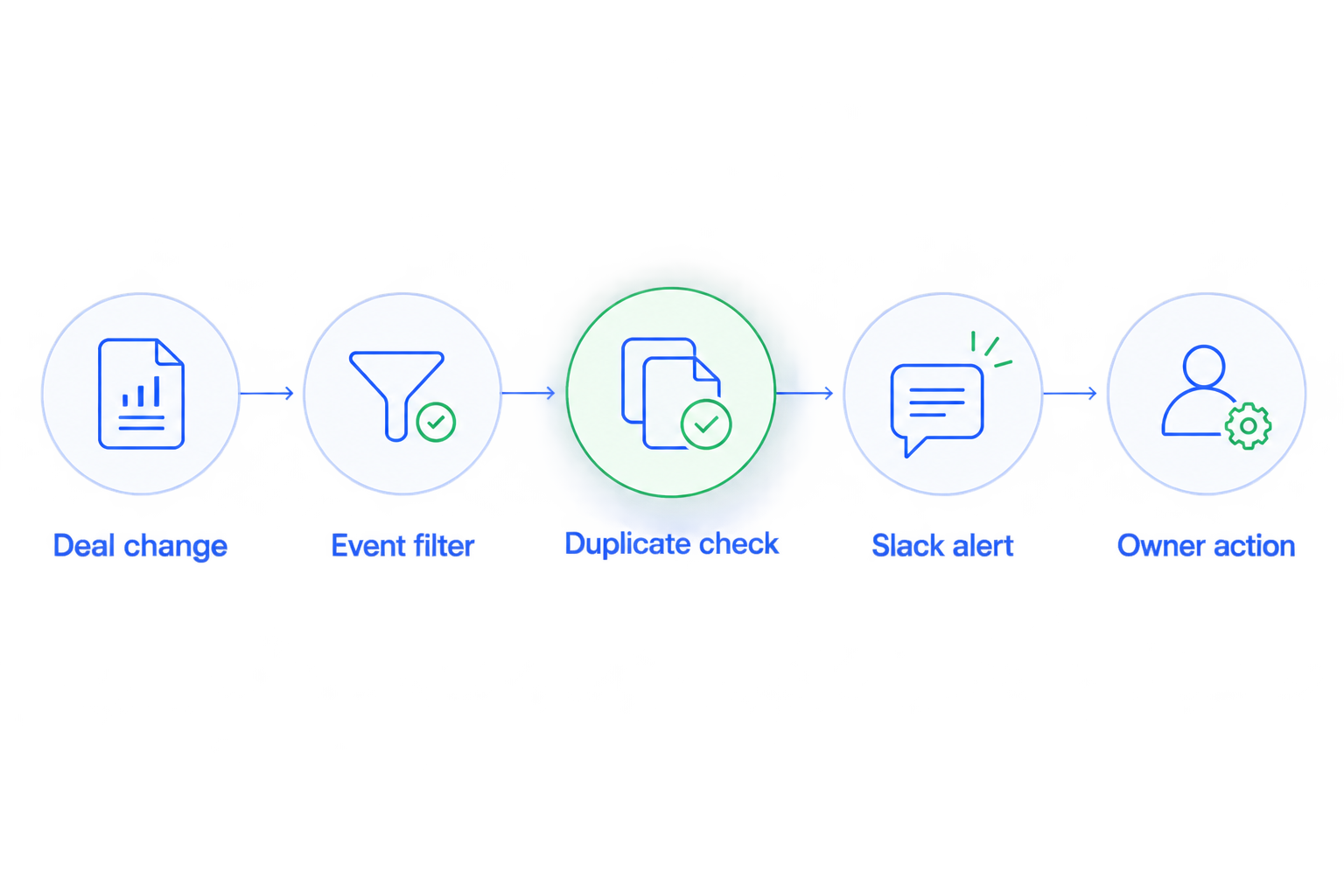
The workflow has distinct responsibilities: Deal change, Event filter, Duplicate check, Slack alert, and Owner action. Delivery automation ends at the alert; sales accountability continues with the owner.
Acceptance testing and release controls
- Prepare 3 test events: a valid stage transition, an unrelated record edit, and a replay of the valid transition.
- Confirm the valid transition produces 1 alert in the pilot channel. Confirm the unrelated edit and replay produce no additional alerts.
- Remove the test opportunity's owner and repeat the relevant test. Verify that the fallback responsibility is visible rather than leaving the action unassigned.
- Test a delivery failure in a controlled environment. Confirm the integration records the error and preserves the event for investigation or retry.
- Ask a salesperson to act from the message. Verify that the next action is clear and that completing it updates the CRM, not just the Slack thread.
Expected result: You can trace a source event through filtering, delivery, and owner action without relying on memory or a manually copied message.
Before expanding the 2026 rollout, assign a connection owner and document how to pause alerts. A workflow nobody can stop is not ready for production.
Create a CRM update from Slack
The main guide sends CRM events to Slack. A Slack-to-CRM workflow reverses the direction and needs a separate authorization and record-matching design.
Best for: Teams that want a structured internal request to become a CRM task or approved update. The benefit is less copying; the limitation is that free-form chat rarely contains enough reliable information to change a deal safely.
- Choose a supported Slack interaction, such as a configured app command or shortcut. An incoming webhook alone cannot read channel messages or write back to the CRM.
- Collect a stable opportunity identifier, the requested action, and the responsible person. Reject ambiguous requests instead of matching on a customer name alone.
- Authenticate the Slack request using the selected app mechanism, then authorize the requester for the proposed CRM action.
- Use the documented CRM API operation. Start with a bounded action, such as creating a task, only if that operation is supported.
- Return a confirmation only after the CRM accepts the change. Keep failures visible and preserve enough context to investigate them.
Do not advance an opportunity because someone types a celebratory message. Structured input and permission checks belong between conversation and record changes.
Archescrm provides CRM integrations and APIs, but a specific Slack action still needs a supported implementation. Use the custom automation connection guide when assessing an automation-platform route; verify the required trigger and action before building around it.
Troubleshooting
No message reaches the channel
Check the integration's HTTP response and error details first. Verify the webhook credential, app authorization, destination conversation, and whether the request was actually sent after filtering.
Do not respond by removing every filter. That hides the cause and risks flooding the channel when delivery resumes.
The same deal produces repeated alerts
Inspect event identifiers and stored delivery status. Retries need to retain the original identity, while genuine later transitions need their own identity.
Also check whether an alert-related write-back changes the opportunity and triggers the workflow again.
The message shows the wrong owner
Inspect the source record and mapping separately. A salesperson's display name does not establish a matching Slack member identity.
Maintain an explicit user mapping if you need mentions. Otherwise, show the owner's name as text rather than tagging the wrong person.
A private channel rejects delivery
Check that the app was authorized for the intended private conversation and remains permitted there. Reauthorize through the approved installation process when access changes; do not route customer details to a public channel as a workaround.
Alerts arrive, but follow-ups remain incomplete
Check whether each message names an owner and an actual task. A channel post is not a completed follow-up, and a reaction is not a CRM status update.
Keep completion in the CRM and review overdue work separately from message-delivery success.
Customize your workflow
Expand the 2026 workflow by business event, not notification volume. Add a handoff alert when responsibility changes, or an exception alert when a defined follow-up deadline passes.
Archescrm supports reminders, tasks, and follow-up sequences. Use those CRM capabilities to manage the work itself; reserve Slack messages for changes that need shared attention.
Keep the first workflow narrow until the team trusts its alerts. Additional channels and return actions add permissions, mappings, and failure paths to maintain.
FAQ
What's the best way to build a Slack CRM integration for deal alerts?
Start with a verified CRM event source and send selected, actionable changes to an approved Slack destination. Include the opportunity, owner, and next action, then test filtering and duplicate protection before release.
Does this guide confirm a native Slack connector for Archescrm?
No. Archescrm supports integrations and APIs, but a native Slack connector and its exact triggers must be confirmed in current product documentation.
Can an incoming Slack webhook update my CRM?
No. An incoming Slack webhook posts messages into Slack; a Slack-originated CRM update needs a separate interaction, authorization checks, and a supported CRM API operation.
Should I send every deal update to Slack?
No. Send changes that require shared attention, such as a defined handoff or follow-up exception. Keep broad update notifications in a diagnostic workflow rather than the production sales channel.
How do I prevent duplicate Slack deal alerts?
Track delivery using a stable source event identifier or a reliable transition identity. Check stored delivery status before sending, and preserve that identity during retries.
Can I mention the deal owner automatically in Slack?
Yes, when your integration maps the CRM owner to the correct Slack member identifier. Without a verified mapping, display the owner's name as text instead of creating an unreliable mention.
How do I know the integration is working?
Verify a relevant stage transition, an unrelated edit, and a replayed event. The relevant transition should alert, while the unrelated edit and replay should not create additional messages.
One last thing
Test the alert that should not fire. A successful message proves that delivery works; silence after an irrelevant edit proves that your filtering works. Keep both checks in your release routine.