
 Log in
 Start Free Trial

You can import as much spreadsheet data as your CRM’s file-size, row-count, field, and account-storage limits allow; there is no universal record limit for 2026. A file that fits the upload limit still needs compatible fields, valid records, and correct relationships between contacts, companies, and deals. Check the import limits and test your field mapping before uploading the full spreadsheet.
- How much data can I import into a CRM from a spreadsheet? Your CRM’s upload and storage limits decide.
- Check file size, rows, fields, and record relationships before starting a CRM migration.
- Arches CRM suits growing sales teams that need lead management and follow-up automation; confirm import requirements before migrating.
- Test representative records before importing the full spreadsheet, then reconcile created, updated, skipped, and rejected rows.
How much data can I import into a CRM from a spreadsheet?
Your usable import capacity is the amount your destination CRM accepts without losing required information or breaking record relationships. Check the current importer documentation and your account’s limits rather than relying on a general CRM comparison.
Use this sequence to establish your capacity:
- Count your source rows. Separate the header from the records and identify repeated contacts.
- Check the accepted file format. Confirm whether the importer accepts your spreadsheet directly or requires an export.
- Compare upload limits. Check file size and rows per upload separately.
- Check destination capacity. Confirm storage, record allowances, and field restrictions for your account.
- Run a representative test. Include records with custom fields, missing values, and relationships before importing everything.
For the wider move, use the guide to migrating from spreadsheets to a CRM.
Why this matters
A successful upload is not the same as a usable sales database. A contact can exist in the CRM while its owner, next action, or deal association is wrong.
That creates a practical sales problem: the lead arrived, but nobody knows who should follow up. Your 2026 migration should preserve the information your team needs to act, not just move names into another system.
Which import limits should I check first?
Check each limit independently. Splitting a large file addresses an upload restriction, but it does not create more account storage or make an unsupported field compatible.
| Limit or requirement | What it controls | What you should check |
|---|---|---|
| File size | Whether an individual upload is accepted | The importer’s current file-size allowance |
| Rows per upload | How many source records fit in a batch | Whether the header counts toward the stated limit |
| Account capacity | How much data the destination account can hold | Existing usage and remaining record or storage allowance |
| Field rules | Whether individual values are accepted | Required fields, text lengths, dates, and allowed values |
| Object support | Which record types the importer creates | Contacts, companies, deals, tasks, or other supported records |
| Relationship mapping | Whether related records stay connected | Identifiers used to connect contacts, companies, and deals |
Ask for the rules that apply to your actual account in 2026. A limit quoted for another subscription or a different import method does not establish your capacity.
Get the limits before preparing batches. Otherwise, you risk rebuilding files around the wrong restriction.
Why spreadsheet import capacity varies
The amount you can move depends on both the destination and the structure of your source data. These factors determine what you need to verify:
- Upload method: A spreadsheet importer, integration, and API can have different acceptance rules. Check the method you intend to use.
- Record structure: A sheet containing contacts alone requires different mapping from a sheet combining contacts, companies, and opportunities.
- Field compatibility: Dates, dropdown values, text lengths, and required fields must match the destination’s rules.
- Account allowances: The upload must fit within the destination account’s applicable storage and record limits.
- Duplicate handling: Matching rules determine whether incoming rows create records, update records, or require review.
- Relationship requirements: Related records need identifiers the destination can use to connect them correctly.
Do not treat these as reasons to abandon the migration. Treat them as acceptance criteria: each one needs a clear answer before the full import starts.
Should I import everything at once or use batches?
Use a representative test batch before deciding how to load the remaining data. A smaller upload makes mapping errors easier to inspect, but dividing files alone does not validate their contents.
Choose the approach according to the restriction you need to solve:
| Approach | Best for | Main advantage | Main limitation |
|---|---|---|---|
| Single full upload | A validated dataset within all applicable limits | Keeps the upload process simple | A mapping mistake can affect the entire uploaded dataset |
| Staged batches | Files that exceed an upload limit or need staged review | Allows reconciliation between uploads | Requires careful batch tracking and duplicate control |
| Integration or API | A repeatable transfer that the destination explicitly supports | Supports a defined transfer process | Requires technical setup and separate validation of supported fields |
For batches, keep the same column names and mapping rules throughout. Record which source rows belong to each batch so a failed upload does not turn into an accidental duplicate upload.
For an integration or API, confirm the available endpoints, supported objects, and applicable limits first. An alternative transfer method is not a guarantee that every spreadsheet field can be imported.
How do I prepare a spreadsheet without losing sales context?
Start with the information your sales team needs for its next conversation. Preserve identity, ownership, current status, and the next action before spending time on fields nobody uses.
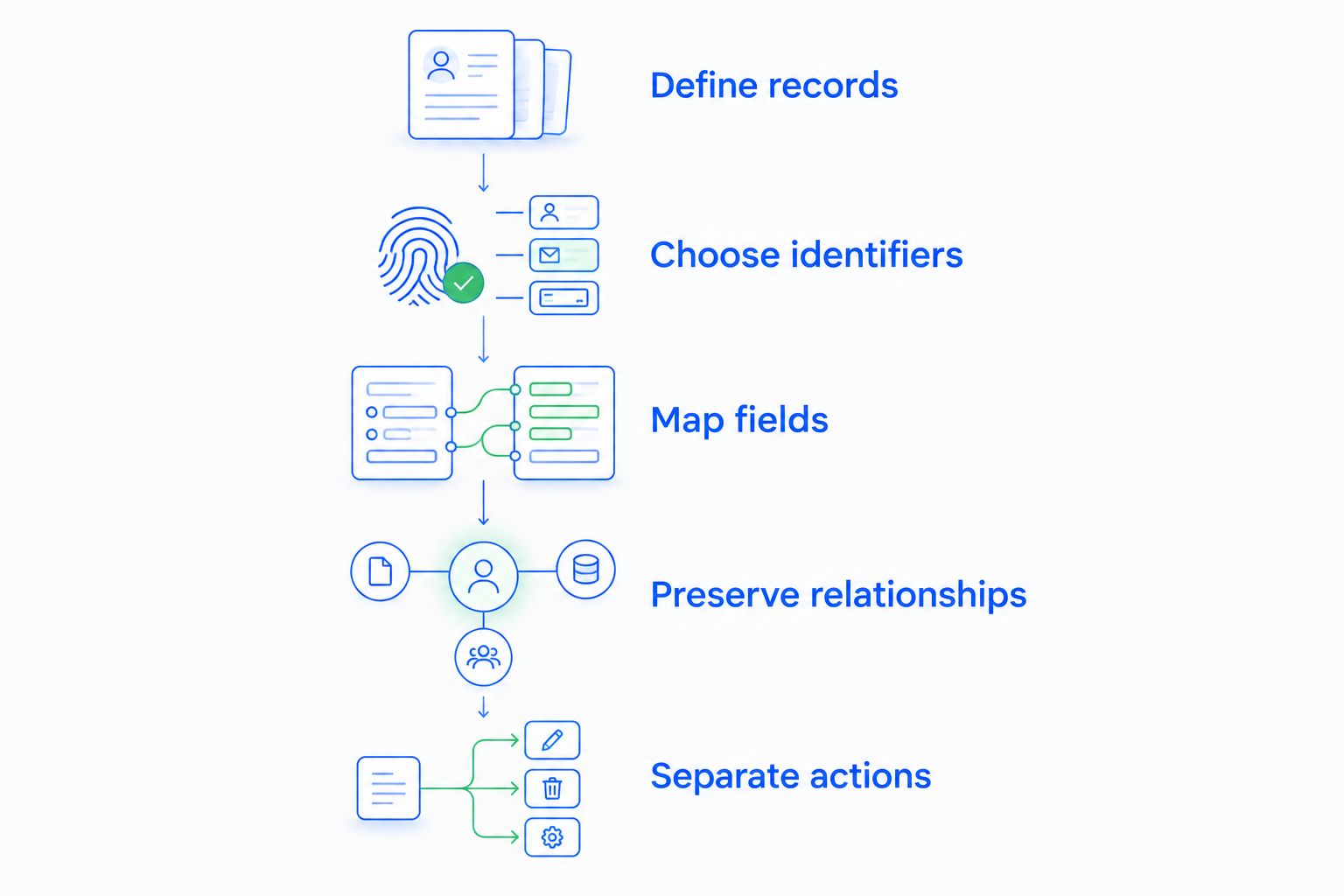
Define what each row represents
Decide whether a row represents a person, a company, or an opportunity. A person with several opportunities should not automatically become several separate contact records.
Aim for 1 source row per intended record within each import file, unless the importer explicitly requires another structure. Keep an unchanged copy of the original workbook so you can trace every transformation.
Choose a matching identifier
Use 1 unique identifier per intended record for matching wherever the importer supports it. That identifier must distinguish records reliably within the dataset you are moving.
Do not assume a name is unique. Shared names, shared inboxes, and changed email addresses need an explicit review rule rather than an automatic guess.
Build a field map
Write down the source column, destination field, expected format, and treatment of blank values. Decide which columns should be excluded rather than forcing every source column into the CRM.
Review phone numbers, postal codes, and external identifiers as text where appropriate. Spreadsheet formatting must not remove meaningful characters before the export reaches the importer.
Preserve relationships
Keep the identifiers that connect contacts to companies and opportunities. If your destination requires related records to exist first, follow its documented import order.
A contact linked to the wrong company is not a minor formatting issue. It changes the context your salesperson sees before making contact.
Separate history from next actions
A note saying someone requested a callback is not necessarily a scheduled task. Map historical notes and future actions separately when the destination supports both.
Confirm what your importer can create. Do not assume that importing a note also creates a reminder, assigns an owner, or activates a follow-up sequence.
What should I include in a test import?
Build 1 test batch that represents the difficult parts of your data, not just the cleanest rows. Include the field types and record relationships you actually need to move.
Your 2026 test checklist should cover:
- A complete contact with an assigned owner.
- A record with a missing optional value.
- A company linked to a contact.
- An opportunity linked to the correct customer record.
- A custom field and a date field.
- A possible duplicate that exercises your matching rule.
- A record with historical notes and a separate next action.
Only include supported objects and fields. Where the importer lacks a required capability, decide how you will preserve that information before proceeding.
After the upload, inspect the destination records directly. Check the stored values, ownership, associations, and task behavior rather than relying only on the success message.
How do I know whether all my data imported correctly?
Reconcile the importer’s results against the source file. Review created, updated, skipped, and rejected records according to the importer’s reporting definitions.
Keep a batch log containing the source filename, mapping version, upload result, and unresolved errors. Save rejection details before editing the source so you retain an explanation for each correction.
Then inspect the records your team will use first: active opportunities, pending callbacks, and recently engaged leads. Confirm that each has the right owner and enough context for the next conversation.
Do not delete the source workbook after a successful upload. Retain a protected reference copy under your organization’s retention and access policies until reconciliation and sign-off are complete.
What happens to automated follow-ups during an import?
Before importing, check whether creating or updating records triggers workflows. Do not assume that a bulk upload is excluded from automation.
Review assignment rules, task creation, email sequences, and stage-change conditions. Where the CRM provides controls, use a deliberate migration state until you have verified the imported records.
This is where the destination’s daily workflow matters. Arches CRM is best for growing sales teams that need lead management and follow-up automation in one place. Arches CRM brings contacts, conversations, tasks, and sales activity together, with workflow automation for reminders and follow-up sequences.
That centralization addresses the work after migration; it does not replace import validation. Confirm the supported import format, field mapping, duplicate behavior, and account limits before choosing how to move your spreadsheet.
Can I import several spreadsheets into the same CRM?
You can import several spreadsheets when the CRM supports the relevant objects and the combined records fit your account’s limits. Reuse a consistent field map and matching rule across files.
Check for overlapping contacts before each upload. Files owned by different salespeople can contain the same customer with different spelling, ownership, or status information.
Does splitting a spreadsheet remove the CRM’s limits?
Splitting a spreadsheet addresses a per-file restriction, not every import restriction. It does not increase total account capacity or change required fields.
For your 2026 migration, separate the batch-size decision from the account-capacity decision. You need both to work before committing the full dataset.
Can I import notes, tasks, and email history with contacts?
You can import those items only when the destination’s import method supports them and their relationships. A contact import does not automatically recreate an email conversation or scheduled task.
Ask how each required data type is transferred and linked. Keep unsupported history accessible through an approved process rather than placing unrelated information into arbitrary contact fields.
FAQ
How much data can I import into a CRM from a spreadsheet?
You can import the amount permitted by your CRM’s upload, field, and account-capacity limits. Check file size, rows per upload, supported objects, and remaining account capacity before preparing the full migration.
Is there a standard maximum number of contacts for a CRM import?
There is no universal maximum number of contacts for a CRM import. The applicable limit depends on the destination account and the import method you use.
Should I use CSV or an Excel workbook for a CRM import?
Use the file format your destination importer explicitly accepts. Check the exported file before uploading because formulas, formatting, and workbook structure do not necessarily transfer as CRM data.
Will importing a spreadsheet create duplicate contacts?
Importing can create duplicate contacts if the matching rules do not identify existing records correctly. Confirm which identifier the importer uses and test how it handles overlapping records.
Can I update existing CRM contacts from a spreadsheet?
You can update existing contacts when the importer supports updates and can match incoming rows to existing records. Check whether blank cells preserve or overwrite existing values before uploading.
Can I import my spreadsheet into Arches CRM?
Confirm Arches CRM’s supported import formats, object types, and current account limits before preparing your upload. Its lead management and workflow automation features do not establish a specific spreadsheet import allowance.
Will my imported leads automatically receive follow-up emails?
Check your CRM’s workflow triggers before importing leads. Record creation or updates can meet automation conditions, so review enrollment rules before loading customer data.
One last thing
Start your 2026 migration with the next action, not the oldest spreadsheet tab. Identify which leads need a response, who owns them, and what happens next; then make those fields part of your acceptance test.
The migration is ready when your team can work from the imported records without returning to the spreadsheet for essential context. A completed upload alone does not meet that standard.