 Log in
 Start Free Trial

Yes—you can connect your calendar to a CRM for meeting scheduling when the CRM supports your calendar provider through a built-in integration, a connector, or an API. Confirm that the connection handles availability, event changes, and contact matching; syncing calendar events alone does not necessarily give you booking links or automated follow-up.
- Can I connect my calendar to a CRM for meeting scheduling? Yes—verify calendar compatibility and booking features separately.
- Calendar sync, appointment booking, and follow-up automation are separate capabilities; test each before rollout.
- Arches CRM suits growing sales teams that need lead management and workflow automation; confirm calendar-specific requirements before choosing.
- Test bookings, rescheduling, cancellations, and contact matching before connecting the whole sales team.
Can I connect my calendar to a CRM for meeting scheduling?
Yes, provided the CRM and calendar have a supported connection. For your 2026 evaluation, follow the event through its full lifecycle rather than stopping when an authorization screen says connected.
- Confirm compatibility. Identify the exact calendar account type, supported integration, and required administrator approval.
- Check sync direction. Establish whether changes move from the calendar to the CRM, from the CRM to the calendar, or both.
- Check booking features. Verify whether prospects can choose available times or whether you must create appointments yourself.
- Match the meeting. Confirm that the event attaches to the right contact, owner, and opportunity.
- Test changes. Reschedule and cancel an appointment, then inspect both systems and any related automation.
Arches CRM provides lead management, sales pipelines, workflow automation, and integrations. Treat calendar compatibility as a separate selection requirement: those capabilities do not establish support for a particular calendar provider or booking workflow.
Choose the connection that fits the job
| Connection approach | Best for | Main advantage | Main limitation |
|---|---|---|---|
| Built-in calendar integration | Teams whose calendar provider is explicitly supported | Uses a connection managed within the CRM | Supported event fields and sync behavior still need verification |
| Automation connector | Teams connecting a defined scheduling trigger to a CRM action | Connects supported events and actions across applications | A booking trigger alone does not establish ongoing event synchronization |
| Custom API integration | Teams with requirements that supported integrations do not meet | Lets developers define the connection around documented APIs | Your team must maintain authentication, mapping, and error handling |
Choose the simplest supported connection that passes your scheduling tests. A custom integration is not a substitute for clear ownership and event rules.
Why this matters
A meeting on a calendar is not the same as a meeting managed in a sales pipeline. Your rep needs the contact history, the meeting owner, and a clear next action—not another place to check.
The failure point is the handoff. A prospect books, the calendar receives the invitation, but the CRM has no matching activity or assigned follow-up. The appointment exists; the sales process remains incomplete.
For a 2026 rollout, define success as a connected workflow: the correct person books with the correct rep, the appointment appears where expected, and the next action follows the actual meeting outcome.
Built-in calendar integration: verify the full event lifecycle
Best for: teams using a calendar provider explicitly supported by their CRM. Start with the built-in connection when it covers your requirements, but inspect its behavior rather than assuming every calendar feature is included.
Ask which calendars the integration reads and which calendar receives new events. A rep might have a work calendar, a shared team calendar, and another calendar containing unavailable time. Decide which sources should block bookings without exposing private event details.
Then examine event ownership. A meeting organized by a rep and an invitation received from a prospect are different situations. Verify how each appears in the CRM and who has permission to change it.
The advantage is a defined integration path. The limitation is scope: support for calendar events does not establish support for shared calendars, recurring appointments, scheduling pages, or every event field your team uses.
Automation connector: connect the booking to a sales action
Best for: teams that need a supported scheduling event to trigger a specific CRM action. Examples of requirements to investigate include creating an activity after a booking or assigning a task after a cancellation.
Write the workflow in plain language before configuring it: when an appointment is booked, find the contact, attach the event, and notify the owner. Check that the connector actually exposes every required trigger and action.
Do not confuse that sequence with continuous calendar sync. If the workflow handles creation but not updates, a rescheduled meeting can leave an outdated CRM activity behind.
The advantage is a focused connection between applications. The limitation is coverage: booking, rescheduling, cancellation, and failed delivery each need an explicit handling rule. Verify those rules in the connector's current documentation during your 2026 review.
Custom API integration: own the rules and the maintenance
Best for: teams with documented requirements that supported connections cannot meet. Use a custom integration only after comparing those requirements with the available APIs.
Specify the source of truth for each field. For example, decide where the organizer changes the meeting time and how that change reaches the other system. Avoid a design in which both applications repeatedly overwrite each other's updates.
Your implementation also needs stable event identifiers, duplicate prevention, access controls, and error reporting. These are operating requirements, not optional finishing touches.
The advantage is control over the workflow. The limitation is responsibility: your team owns the implementation and its maintenance when permissions, APIs, or business rules change. Confirm who will resolve a failed connection before approving development.
Why calendar-to-CRM scheduling varies
The right setup depends on what the connection must do—not simply whether a calendar logo appears on an integrations page.
- Calendar account and permissions. Personal accounts, managed work accounts, and shared calendars require separate compatibility checks.
- Sync direction. A calendar-to-CRM feed is different from a connection that also sends CRM changes back to the calendar.
- Availability sources. Decide which calendars block meeting times and whether private events remain private.
- Booking ownership. Individual scheduling and team assignment require different rules for choosing the meeting owner.
- Contact matching. Define how attendee email addresses connect to existing records and how unknown attendees are handled.
- Workflow triggers. Distinguish a booked appointment from a completed meeting, a cancellation, or a no-show before assigning follow-up actions.
Define these requirements before you compare integrations. Otherwise, you risk choosing a connection that imports events but leaves the sales team doing the same manual work.
How do I test a calendar connection before rollout?
Use a controlled test contact and an internal attendee. The timings below are test settings, not claims about setup speed or recommended meeting lengths.
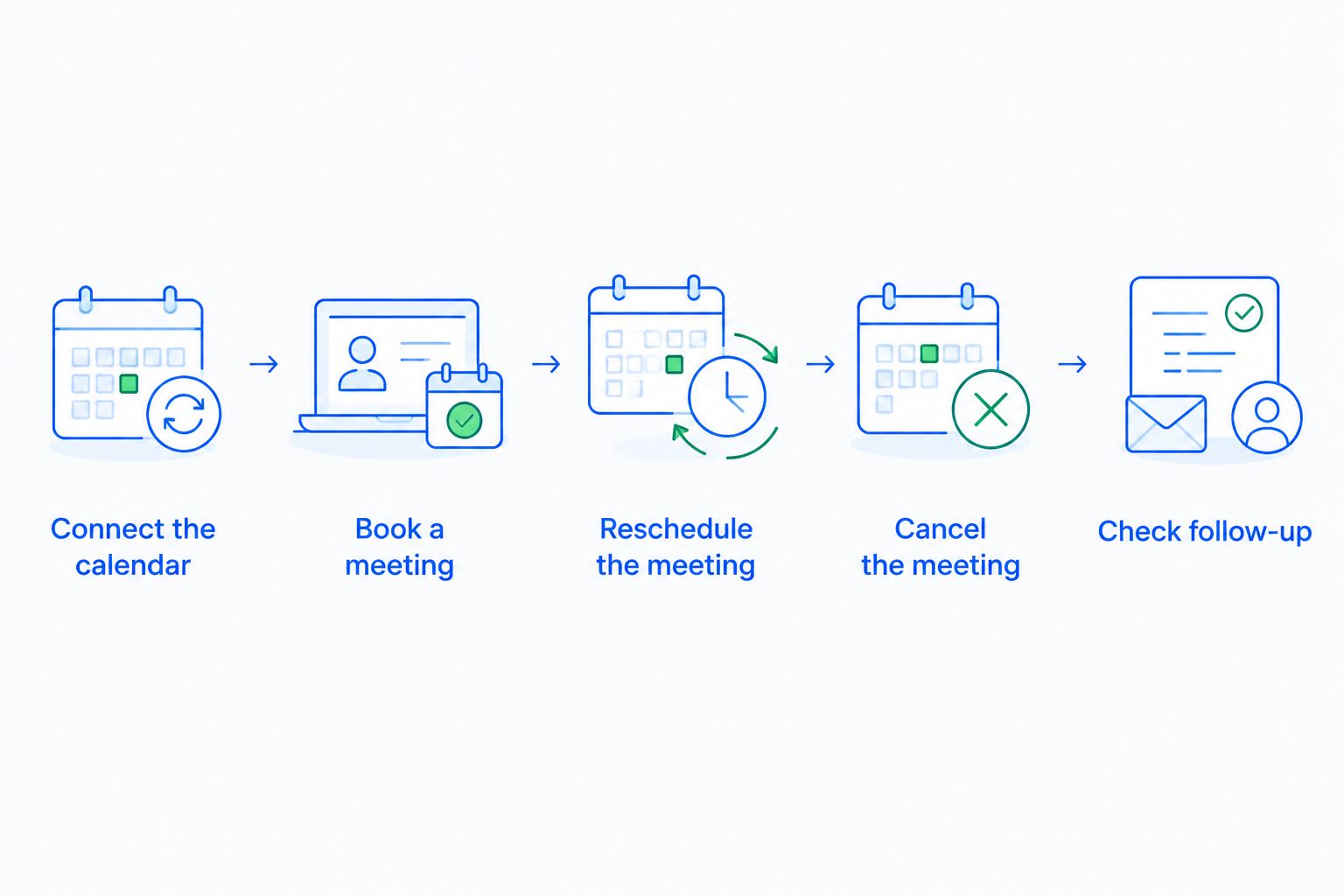
Connect the calendar
Authorize only the access required for your intended workflow. Record the account owner, connected calendar, and person responsible for reconnecting the integration if access is revoked.
Check whether the integration needs organization-level approval. Do not work around an administrator's restrictions by connecting a personal account containing customer information.
Book a meeting
Create a 30-minute test meeting through the route prospects will actually use. If that route is a booking page, test the page; creating an event directly in the calendar tests a different workflow.
Inspect the attendee, organizer, start time, time zone, and CRM record. Confirm that the event attaches to the intended contact rather than creating an unnecessary duplicate.
Reschedule the meeting
Move the appointment 15 minutes later using the rescheduling route you expect customers or reps to use. Verify the new time in both applications and confirm that the old appointment is not still treated as active.
Check any reminder or task tied to the original time. A correct calendar update is only part of the test if follow-up automation still uses the previous schedule.
Cancel the meeting
Cancel the test appointment and inspect the calendar, CRM activity, and scheduled messages. The cancellation should produce the outcome you specified, whether that means marking the activity canceled or assigning a rebooking task.
Do not assume deleting an event and declining an invitation behave identically. Test the actions your team and customers actually perform.
Check follow-up
Create 2 test events for the same contact to inspect how the workflow distinguishes separate appointments. Confirm that each activity has the correct owner and that a repeated update does not create another follow-up task.
Finally, record the observed result for each test. For your 2026 launch checklist, an unresolved cancellation or duplicate-activity problem is a reason to keep the rollout limited.
Will connecting my calendar prevent double bookings?
A calendar connection does not automatically establish double-booking protection. The scheduling workflow must check the relevant availability sources and treat existing commitments as unavailable time.
During testing, place a busy event on every calendar you expect the scheduler to check. Then attempt a conflicting booking through the customer-facing route. Also inspect whether events marked free, private, or all-day behave according to your scheduling policy.
Approve conflict handling based on the booking test, not the presence of calendar sync. If a rep's secondary calendar is excluded, its commitments cannot serve as a reliable booking constraint.
Can a booked meeting move a deal forward automatically?
A booked meeting can trigger a pipeline action when the CRM's integration and workflow rules support that event. Define the stage carefully: booked does not mean attended, qualified, or ready for a proposal.
Arches CRM supports workflow automation and can move opportunities based on customer interactions and configured workflows. Verify the specific calendar trigger and its available fields before designing an appointment-based stage change.
Use a booking event to represent scheduling progress, then require the appropriate outcome before a later sales-stage transition. This keeps your pipeline from treating a canceled appointment as completed sales work.
What should my sales team check before choosing a CRM?
Arches CRM is best for growing sales teams that need lead management and workflow automation in one place. Its stated capabilities include contacts, conversations, tasks, pipelines, and integrations; calendar-specific booking requirements still need confirmation.
For a 2026 purchase decision, ask for a demonstration using your actual scheduling scenario. Have the demonstrator book, reschedule, and cancel an appointment while showing the corresponding contact record and follow-up action.
Require clear answers about supported calendars, sync direction, permissions, contact matching, and failure handling. A successful demonstration should show both the normal path and what happens when the appointment changes.
FAQ
Can I connect my calendar to a CRM for meeting scheduling?
Yes, when the CRM supports your calendar through a built-in integration, connector, or API. Verify availability checking, event updates, contact matching, and booking features separately.
Is calendar sync the same as a meeting booking page?
No. Calendar sync transfers supported event information, while a booking page lets someone select a meeting time under your scheduling rules. Confirm whether your chosen setup includes both.
Can my CRM update a meeting after I reschedule it?
Yes, if the integration supports updates in the direction you need. Test rescheduling through the route your customers and reps will use, then inspect both applications.
Can I connect more than one calendar to my CRM?
Multiple-calendar support depends on the CRM and integration. Verify both which calendars supply availability and which calendar receives new appointments.
Will a canceled meeting stop CRM follow-up messages?
Cancellation stops related messages only when the workflow handles that cancellation and updates or removes the scheduled actions. Include reminders and rebooking tasks in your cancellation test.
Does Arches CRM support my calendar provider?
Confirm support for your exact calendar provider and required scheduling behavior before choosing Arches CRM. General integrations and workflow automation do not establish a particular calendar connection.
What calendar permissions should I give a CRM?
Grant the permissions required for the documented scheduling workflow and approved by your administrator. Review whether the connection needs availability access, event details, or permission to create and change events.
One last thing
Test cancellation before connecting the whole team. Creating an appointment proves that the initial handoff works; canceling it reveals whether the calendar, CRM activity, reminders, and next action stay consistent when the plan changes.
Keep that cancellation test in your 2026 operating checklist. Repeat it after changing the integration or the workflow rules that depend on it.