 Log in
 Start Free Trial
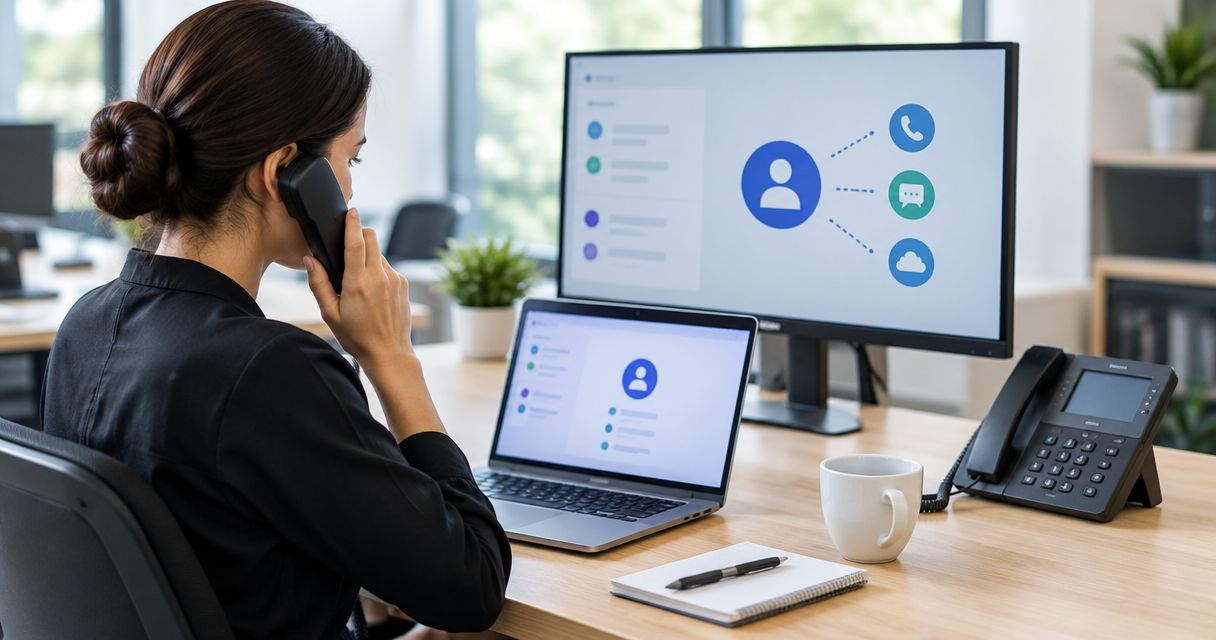
Yes, a CRM can connect to your existing phone system when the systems support a compatible integration, middleware connection, or API-based setup. Before connecting them in 2026, confirm which call events and customer details will transfer: call logging, click-to-call, recording access, and follow-up automation are separate capabilities, not an automatic package.
- Can a CRM connect to my existing phone system? Yes, through compatible connectors, middleware, or APIs.
- Call logging and click-to-call are different capabilities; confirm each before choosing an integration.
- Arches CRM suits growing sales teams managing leads, follow-ups, and customer conversations; confirm phone-provider compatibility before connecting.
- Test answered, missed, outbound, transferred, and unknown-number calls before enabling automated follow-ups.
Why this matters
A phone connection should remove a handoff, not create another place to check. If a salesperson finishes a call but still has to find the contact, enter the outcome, and remember the next task, the connection has not solved the follow-up problem.
Judge the integration by what happens after the call. Your team needs the correct customer record, a usable activity history, and a clear next action. For the implementation steps, see how to connect your phone system for call logging.
Can a CRM connect to my existing phone system?
Yes, provided your phone system can exchange the required information with your CRM. Start with your exact phone provider, service configuration, and CRM account—not a general claim that both products support integrations.
These are the main connection routes to evaluate in 2026. Each solves a different implementation problem, and none proves compatibility by itself.
| Connection route | Best for | What it does | Advantage | Limitation |
|---|---|---|---|---|
| Native connector | Teams whose exact systems have a supported connection | Uses an integration maintained for the named systems | Reduces the need to build the connection yourself | Supported events and fields can be narrower than your workflow requires |
| Middleware | Teams connecting supported apps around a defined trigger | Passes events and actions through an intermediary | Helps connect workflows without building every component | Adds another place to monitor failures and permissions |
| Custom API integration | Teams with specific routing or data requirements | Uses documented interfaces to exchange selected data | Gives control over mapping and workflow logic | Requires development, testing, and ongoing ownership |
Best first step: check for a supported native connector, then compare its actual behavior against your requirements. A connector that logs answered calls but ignores missed calls is not enough if your main problem is unanswered inquiries.
Ask both vendors to describe the supported connection in writing. Confirm who maintains it, which account permissions it needs, and where your team can see failed events.
Native connectors: check the feature list, not the label
A native connector is the first route to assess when your CRM and phone provider explicitly support each other. Check the exact service or deployment involved; a provider name alone does not establish that your configuration works.
Ask for a demonstration using your required workflow. Have someone place a call, answer it, finish it, and show the resulting CRM activity. Then repeat the process with a missed call.
The benefit is a defined integration path. The limitation is that you work within the connector's supported fields, actions, and update behavior. Do not assume that a visible phone icon means calls, recordings, and outcomes all synchronize.
Middleware: check every trigger and action
Middleware connects a phone event to a CRM action when both sides expose the necessary functions. For example, your intended workflow might start with a completed-call event and end with a CRM activity being created.
Write that workflow in plain language before configuring it. Specify which event starts the process, how the contact is found, which fields are written, and what happens if no matching contact exists.
Middleware is useful for a focused connection. Its limitation is operational ownership: someone must check failed runs, expired access, and changes to field mappings. A workflow that works during setup still needs an owner after launch.
Custom APIs: define the maintenance responsibility
A custom integration is an option when documented APIs expose the phone events and CRM actions you need. An API is a way for software systems to exchange information; its existence does not mean every requested feature is supported.
Before approving development, define authentication, event delivery, duplicate handling, and error recovery. Establish whether the phone system sends events automatically or whether the integration must request updates.
The benefit is control over the connection's behavior. The limitation is responsibility for keeping it working. Name the person or team responsible for investigating missing activities, updating credentials, and adapting to documented interface changes.
What should the phone connection actually do?
Separate your requirements into distinct capabilities. This prevents a demonstration of one feature from being mistaken for proof of the whole workflow.
Call logging
Call logging creates an activity record from a phone event. Check whether that record includes the direction, timestamp, status, responsible salesperson, and customer match you need.
Also establish when the activity appears. A record created when ringing starts is different from a completed-call record with a final outcome. Your automation must use the event that matches the task.
Click-to-call
Click-to-call starts a dialing action from a CRM record. Depending on the setup, that action can open a calling application or initiate a supported phone workflow.
It does not, by itself, prove that the completed call returns to the CRM. Test dialing and activity logging separately. Otherwise, your team can gain a convenient button while still entering every outcome manually.
Customer matching
Customer matching connects a phone number to an existing record. Check how the integration handles country codes, shared business numbers, extensions, and duplicate contacts.
Define a safe fallback when the match is uncertain. An unmatched activity awaiting review is preferable to a confident-looking entry on the wrong customer's record.
Recordings and transcripts
Recording access, transcription, and call logging are different requirements. Confirm whether the connection transfers a file, stores a link, or provides no recording access at all.
Check permissions and retention before enabling recording-related workflows. Recording consent requirements depend on the applicable jurisdiction; get appropriate legal guidance rather than treating a technical setting as permission to record.
Follow-up actions
A useful connection turns a meaningful call outcome into an assigned next step. That might mean creating a callback task after a missed inquiry or scheduling a reminder after a salesperson records an agreed follow-up.
Do not treat a completed call as proof that a deal progressed. A call ending is a technical event; a qualified opportunity is a sales judgment. Keep that distinction in your workflow rules.
How do I check compatibility before connecting anything?
Use this sequence for your 2026 compatibility review. Complete it before switching on workflows that send messages or change customer records.
- Identify systems. Record your phone provider, deployment type, CRM, and required account permissions. Include any existing call-routing or recording configuration that the connection must preserve.
- Define outcomes. Write down what should happen after an answered call, a missed call, and an unknown-number call. Separate essential behavior from conveniences.
- Map fields. Specify the contact identifier, phone-number format, activity owner, call status, and outcome fields. Decide which system supplies each value.
- Test events. Run real test calls and inspect both systems. Confirm that activities appear on the intended records without unwanted duplicates.
- Assign ownership. Name who checks failures, corrects unmatched records, and approves workflow changes. Document how to pause automation without disrupting normal calling.
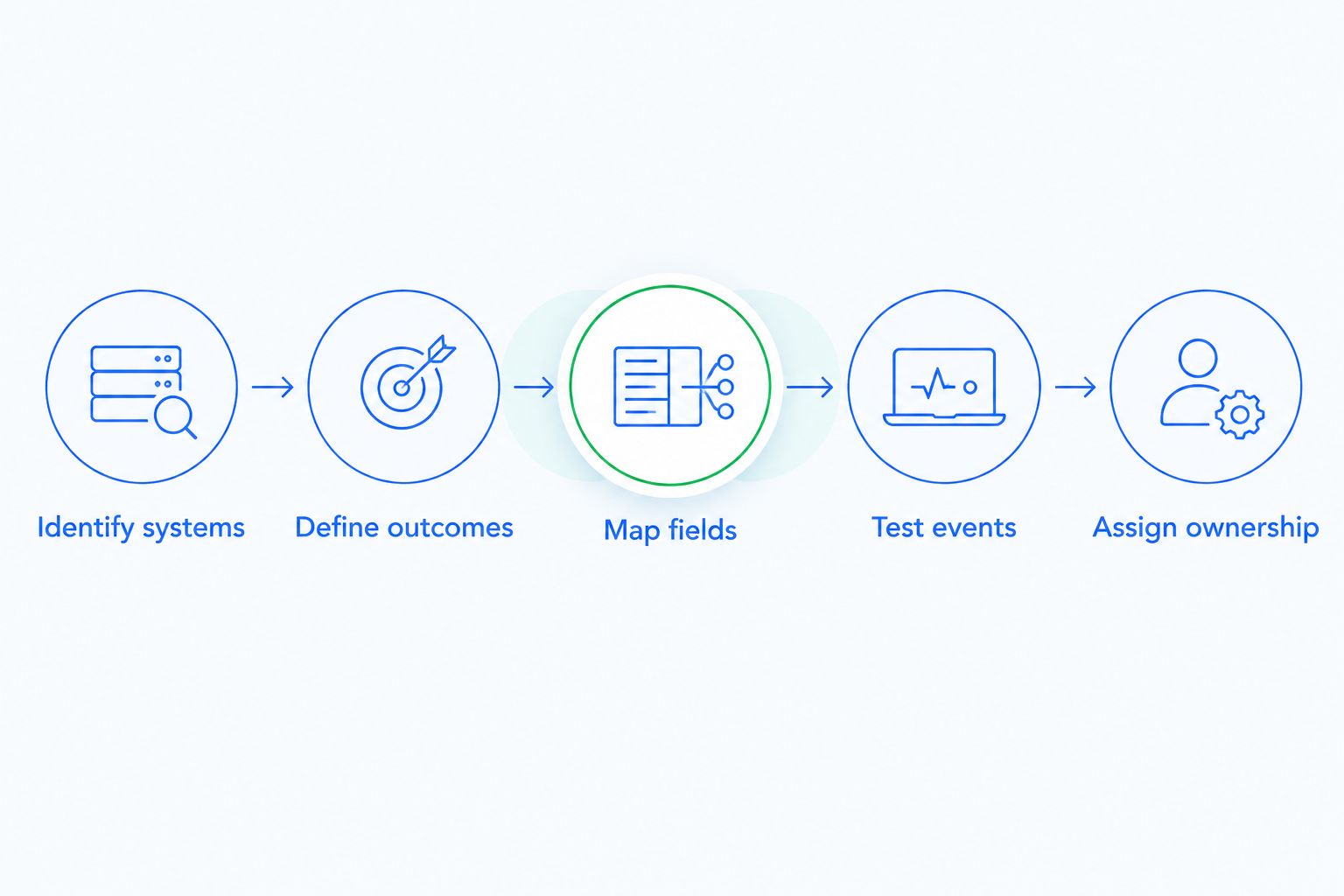
Ask for evidence at each step rather than accepting a feature checklist alone. A demonstration should show both the phone event and the resulting CRM record, including any failed or unmatched activity.
Why phone-system compatibility varies
Compatibility depends on what the systems expose and what your sales process requires. Use these factors to explain differences between proposed setups, not to assume that any particular provider supports them.
- Available interfaces. The phone system must expose the events or records your CRM needs, and the CRM must accept the intended actions.
- Connector scope. A supported connection can cover call activity without supporting dialing, recordings, or two-way updates.
- Account permissions. The connection needs appropriate access to read call information and write CRM records. Review that access before approval.
- Contact data quality. Inconsistent number formats and duplicate records complicate matching, even when the connection itself works.
- Routing complexity. Shared numbers, queues, and transfers require explicit rules for activity ownership and follow-up responsibility.
- Workflow requirements. Logging an event is different from updating a deal or sending a customer message. Evaluate each action independently.
Keep the initial scope narrow enough to verify. Get reliable call records and ownership working before attaching additional customer-facing actions.
What should I test before the team uses it?
For a 2026 rollout, use 6 test calls covering distinct situations. These are acceptance-test recommendations, not a claim about any provider's capabilities.
| Test case | What to verify |
|---|---|
| 1 inbound answered call | The activity reaches the correct contact and responsible salesperson |
| 1 outbound answered call | Dialing behavior and completed-call logging both work as intended |
| 1 missed inbound call | The missed status is accurate and the callback responsibility is clear |
| 1 transferred call | Activity ownership and duplicate handling match your agreed rules |
| 1 unknown-number call | The connection follows your unmatched-caller process |
| 1 call to a shared contact number | The connection avoids silently assigning an uncertain match |
Inspect the result of each test in the CRM. Check the timestamp, number format, owner, status, and next task against the phone system's record.
Then test failure handling in a controlled environment. Ask how the connection reports rejected events, retries interrupted transfers, and prevents duplicate activities after a retry. Do not approve the rollout until someone can find and explain a failed event.
Where does Arches CRM fit?
Arches CRM is best for growing sales teams that need leads, customer conversations, and follow-up tasks in one CRM. It brings email, WhatsApp, SMS, and calls into customer communication workflows and supports integrations and APIs.
The benefit is keeping sales context and next actions together. The boundary is provider compatibility: those platform capabilities do not establish support for your particular phone system, recording setup, or call-routing rules.
Evaluate Arches CRM against the same acceptance tests above. Ask for confirmation of the exact connection route and supported events before deciding which existing calling processes to retain.
Can I keep my current business phone number?
Keeping your current number depends on the connection design and your phone provider's rules. Connecting call data does not inherently require moving the number, but changing providers introduces a separate number-transfer process.
Ask whether the proposed setup leaves number hosting, routing, and voicemail unchanged. Treat any requested number transfer as a separate decision with its own checks.
Will every call appear in the CRM automatically?
Automatic logging covers only the calls and events supported by the configured connection. Personal-device calls, unsupported routes, or events outside the integration's permissions need separate verification.
Define the coverage you expect before rollout. Make exceptions visible so a salesperson knows when to enter an activity manually rather than assuming the history is complete.
Can a missed call create a follow-up reminder?
A missed call can create a follow-up reminder when the integration supplies the missed-call event and the CRM supports the required task action. Define the owner, matching rule, and duplicate prevention before enabling it.
Check how the rule behaves if the caller tries again or another salesperson returns the call. A callback reminder should reflect unfinished work, not remain active after the customer has been contacted.
FAQ
Can I connect a CRM to the phone system I already use?
Yes, when your phone system and CRM have a compatible connector or expose the necessary integration interfaces. Confirm your exact configuration and required call events before setup.
Do I need to replace my desk phones to connect a CRM?
Replacing desk phones is not an automatic requirement for CRM integration. Whether your existing equipment can stay depends on the phone service, connection method, and dialing features you require.
Is click-to-call the same as automatic call logging?
No, click-to-call starts a dialing action, while automatic call logging writes call information to a CRM record. Verify both capabilities independently.
Can my CRM show who is calling before I answer?
Caller identification inside a CRM requires support for incoming-call events and customer matching. Ask for a demonstration with your exact phone configuration rather than assuming call logging includes this feature.
Can a CRM record all my phone calls?
Call recording requires recording support, appropriate access, and compliance with applicable consent rules. A call-logging integration does not establish that recording is included or legally permitted.
Will connecting my phone system create duplicate contacts?
Duplicate creation depends on your matching and record-creation rules. Specify how the connection handles unknown numbers, shared numbers, and existing contacts before enabling automatic contact creation.
Can I connect my existing phone provider to Arches CRM?
Confirm your exact phone provider and configuration with Arches CRM before committing to a connection. The platform supports integrations and APIs, but that does not establish compatibility with every phone provider.
One last thing
Before signing off on a phone integration in 2026, ask someone to miss a test call deliberately. Follow that event until a named salesperson has a clear callback task on the correct customer record.
That test exposes the gap between collecting activity and managing follow-up. Approve the connection when it makes the next action clear—not merely when a call appears in a list.