
 Log in
 Start Free Trial

Instead of manually copying website inquiries into your sales pipeline, set up website form to CRM automation that validates each submission, finds or creates the contact, and creates a deal for qualifying inquiries. This guide shows you how to design that workflow for 2026, assign ownership, and prevent duplicate deals before follow-up starts.
- Arches CRM suits growing sales teams that need lead management, sales pipelines, and follow-up automation together.
- Website form to CRM automation should validate inquiries before creating deals.
- Match existing contacts, prevent duplicate submissions, and assign every new opportunity an owner.
- Test deal creation and follow-up separately before enabling the workflow.
Why this matters
A form submission is not a complete sales handoff. Without a linked contact, an owner, and a next action, an inquiry can enter the pipeline without anyone taking responsibility for it.
Arches CRM is best for growing sales teams that need lead management and follow-up automation in one platform. Its CRM capabilities include contact management, sales pipelines, workflow automation, and integrations through APIs. The website-to-deal connection still needs explicit rules for your form, destination fields, and sales process.
Use Arches CRM as the destination for the lead and sales activity, then define what should happen when an inquiry arrives. Your 2026 setup should create a usable opportunity, not merely another record.
Before you start
- Access: Have permission to configure your website form, its integration or webhook, and the CRM connection. Prepare the required credentials without putting secrets into browser-visible form code.
- Mapping: Identify the destination pipeline, starting stage, owner assignment rule, and required contact and deal fields. Use the actual field names shown in your connected systems; the names below describe their purpose, not specific interface labels.
- Duplicate protection: Confirm whether your form supplies a stable submission identifier. A retried delivery must not create another deal, and contact matching alone does not prevent duplicate opportunities.
Choose a form that represents sales intent, such as a consultation or demo request. Do not treat a newsletter signup, support request, or job application as a sales opportunity simply because it includes an email address.
Choose your deal-creation rule
There are two useful workflows: create a deal immediately for qualified inquiries, or create the contact first and wait for qualification. Neither rule belongs on every form.
| Workflow | Best for | Advantage | Limitation |
|---|---|---|---|
| Immediate deal creation | Sales inquiry forms with clear intent | Places the inquiry into an owned pipeline immediately | Irrelevant submissions create pipeline clutter unless filtered |
| Qualification-first creation | Mixed-purpose or early-interest forms | Keeps unqualified contacts out of the opportunity pipeline | Requires a separate qualification event and owner |
Use immediate deal creation only when submitting the form signals a genuine sales inquiry. Qualification-first creation is the better rule when the form serves several purposes. Document that decision before configuring either workflow.
Submission trigger and validation
The first configuration unit decides which submissions enter the workflow. During your 2026 setup, keep the automation disabled until you can inspect a test submission and confirm its contents.
- Select the source form. Connect the specific sales form through a supported integration or a server-side API workflow. Scope the trigger to that form rather than every submission on the website.
- Capture a test submission. Include a name, email address, inquiry text, and any qualification answers your form collects. Inspect the transmitted field keys rather than assuming they match the visible labels.
- Validate required data. Reject or route submissions that lack the contact information your team needs. Preserve the original inquiry so the salesperson can understand what the prospect requested.
- Apply the qualification filter. Accept sales inquiries and exclude unrelated request types. Keep rejected submissions visible in a separate review process rather than silently deleting them.
- Record the submission identifier. Store the form's stable identifier in your workflow's processing record. Check it before creating an opportunity so repeated delivery does not repeat the business action.
Expected result: A qualifying submission passes through with its contact details, inquiry, source, and processing identifier intact. An unrelated or incomplete submission does not create a deal.
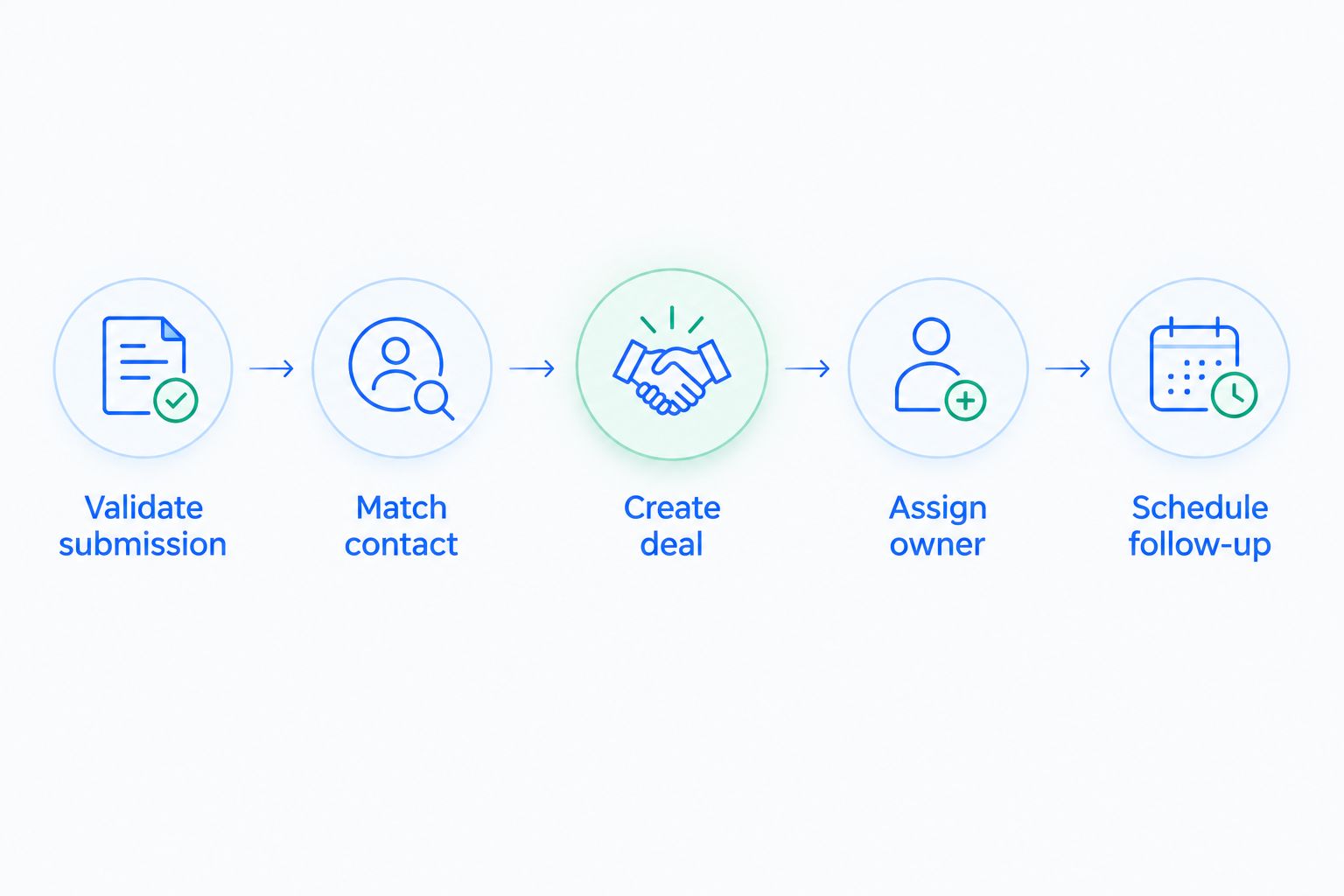
The intended sequence is simple: validate the submission, match the contact, create the deal, assign the owner, and schedule follow-up. Each action has a separate responsibility.
Contact matching and field mapping
A returning prospect should not become a new contact every time they complete your form. Separate contact identity from the opportunity: the same person can have an existing record and a genuinely new sales request.
- Define the matching rule. Use the email address as a contact lookup key when it is your chosen identifier. Apply the same normalization rules during lookup and record creation.
- Search before creating. Retrieve the existing contact when a match exists. Create a contact only when the lookup finds no matching record; route ambiguous matches for review.
- Map the form data. Connect each source field to its intended destination. Keep contact details on the contact and sales-request context on the opportunity or its associated activity.
- Protect existing information. Do not overwrite a populated CRM field with an empty form value. Decide which submitted fields can update an existing contact and which need review.
- Retain the relationship. Use the resulting contact identifier in the deal-creation action. Do not rely on a typed name to associate the opportunity with the person.
| Submitted information | Intended destination | Mapping rule |
|---|---|---|
| Name and email | Contact record | Match first; create only when no match exists |
| Company | Supported company or contact field | Preserve existing data when the submitted value is blank |
| Inquiry text | Deal context or associated activity | Retain the prospect's original wording |
| Form source | Supported source field | Record which form produced the inquiry |
| Submission identifier | Processing record or supported custom field | Use for duplicate-delivery checks |
Expected result: The workflow returns a contact identifier and preserves the inquiry context. An existing contact remains linked to the new request without unnecessary duplicate records.
Arches CRM provides lead and contact management alongside sales pipelines. Map against the fields exposed by your chosen connection; do not assume the integration supports every field available elsewhere in the platform.
Deal creation, ownership, and follow-up
The deal-creation action turns a qualifying inquiry into a sales responsibility. Configure it around the next real action your team must take, not around the most optimistic pipeline stage.
- Check for an existing opportunity. Look for an open deal that already represents the same request. Define whether a repeat inquiry should update that deal or create a distinct opportunity.
- Set the destination pipeline and stage. Place new inquiries in the stage your team uses for unqualified or newly received sales requests. A form submission alone is not evidence of a completed qualification conversation.
- Create a descriptive deal name. Combine meaningful submitted information, such as the company and request type. Avoid names that expose unnecessary personal information in shared views.
- Link the contact. Pass the matched or newly created contact identifier into the deal action. Attach the inquiry context using fields or activity records supported by the connection.
- Assign an accountable owner. Use your documented territory, team, or routing rule. Provide a fallback owner when the submission lacks the information required for normal routing.
- Schedule follow-up. Create the appropriate task or reminder after successful deal creation. Set its due time from your team's response policy, not an arbitrary template deadline.
- Record successful processing. Save the submission identifier and created deal identifier once creation succeeds. If a later task fails, repair that task without recreating the opportunity.
Expected result: Each qualifying submission creates 1 deal for the intended request, linked to the correct contact and assigned to an owner. The owner receives a defined next action rather than an unexplained pipeline entry.
Arches CRM supports workflow automation for reminders, tasks, and follow-up sequences. For the next handoff, use the guide to automatic CRM follow-up reminders to plan what happens after the deal exists.
Test the complete handoff
Before enabling your 2026 workflow, run these 3 test cases:
- New prospect: Submit a qualifying inquiry and verify the contact, deal, owner, stage, and next action.
- Existing prospect: Submit with a known contact email and verify that the workflow uses the existing contact.
- Repeated delivery: Process the same submission identifier twice and verify that it produces 1 deal, not 2 deals.
Inspect the actual destination records after each test. A successful transmission does not prove that field mapping, ownership, or contact association is correct.
Create a deal when qualification changes
Qualification-first automation uses a different trigger: the contact becomes qualified after the initial submission. This variant suits forms that capture interest without establishing a sales opportunity immediately.
- Capture the submission and create or update the contact without creating a deal.
- Assign someone to review the request or collect the missing qualification information.
- Trigger deal creation when the defined qualification condition changes from unmet to met.
- Check for an existing opportunity before creating the deal, then apply the same ownership and follow-up rules.
Expected result: The original submission remains traceable, but the opportunity appears only after qualification. Repeated contact edits do not create repeated deals.
For this variant, distinguish a state change from a record update. Editing a phone number on an already qualified contact should not count as a new qualification event.
Troubleshooting
The submission arrives, but no deal appears
Check the qualification filter, required fields, and destination access first. Inspect the failure response from the creation action; a received form event is not proof that the CRM accepted the opportunity.
Correct the failing mapping or permission, then replay the failed action with the original submission identifier. Keep duplicate protection active during recovery.
One submission creates duplicate deals
Check for repeated event delivery, multiple active automations, and parallel processing. A lookup followed by creation needs protection against two workers processing the same submission simultaneously.
Use a processing mechanism that claims each submission identifier once. Do not use contact matching as a substitute: two deals can belong to the same correctly matched contact.
The deal has the wrong owner or stage
Verify the routing rule and destination values accepted by the integration. Confirm that the configured pipeline and stage belong together and that the intended owner can receive the record.
Send unmatched routing cases to a named fallback owner. An unassigned deal is not a completed handoff.
Existing contact details disappear
Inspect how the mapping handles empty values. A blank optional field should not erase a populated destination field unless that behavior is intentional.
Update only permitted fields and retain the submitted request separately. Test this behavior with an existing contact before re-enabling the workflow.
The deal exists, but follow-up is missing
Check whether the task action ran after successful deal creation and whether it used the returned deal identifier. Review owner assignment and due-time configuration separately.
Retry the missing follow-up action against the existing deal. Replaying the entire workflow without duplicate protection can create another opportunity instead of fixing the task.
Customize your workflow
Start with a single sales form, then expand after the handoff works. Route inquiries by request type, preserve submitted campaign context when available, and add notifications for failed processing or unmatched owners.
Keep acceptance messages separate from sales follow-up. A confirmation that the form was received does not prove that a salesperson contacted the prospect, and submitted contact details alone do not establish permission for every communication channel.
Review your 2026 workflow whenever form fields, pipeline stages, or assignment rules change. Re-run the original tests after those changes. Arches CRM workflow automation should support your sales process; it does not remove the need to define qualification and ownership.
FAQ
How do I automatically create a deal from a website form?
Connect the form submission to a workflow that validates the inquiry, matches or creates the contact, and creates a linked deal. Configure the pipeline, stage, owner, and follow-up action before enabling it.
Should every website form submission become a deal?
No. Create deals for forms that represent sales intent, and use contact-first processing for mixed-purpose or early-interest forms. Exclude support requests, job applications, and newsletter signups from the sales-opportunity rule.
Can I use Arches CRM for website form to CRM automation?
Arches CRM provides lead management, sales pipelines, workflow automation, and integrations through APIs. The form-to-deal setup depends on the connection available for your form and the fields and actions that connection exposes.
How do I stop duplicate deals from form submissions?
Track a stable submission identifier and prevent the same submission from creating another opportunity. Also check whether an existing open deal already represents the request; contact matching alone does not prevent duplicate deals.
What happens when an existing contact submits the form again?
Match the existing contact before creating a new contact record. Then decide whether the request belongs to an existing opportunity or represents a distinct deal, while preserving populated contact fields.
Can a deal be created only after the lead is qualified?
Yes. Create or update the contact from the submission, then trigger deal creation when a defined qualification condition changes from unmet to met. Check for an existing opportunity before creating another deal.
How do I test website form automation before publishing it?
Test a new prospect, an existing contact, and repeated delivery of the same submission. Inspect the resulting contact association, deal count, pipeline stage, owner, and follow-up task rather than relying only on the integration's success message.
One last thing
Test recovery, not just success. Deliberately interrupt the follow-up action in a controlled test, then confirm you can repair the task without creating another deal. That test exposes a failure a clean submission test misses: an opportunity exists, but nobody has a next action.