 Log in
 Start Free Trial
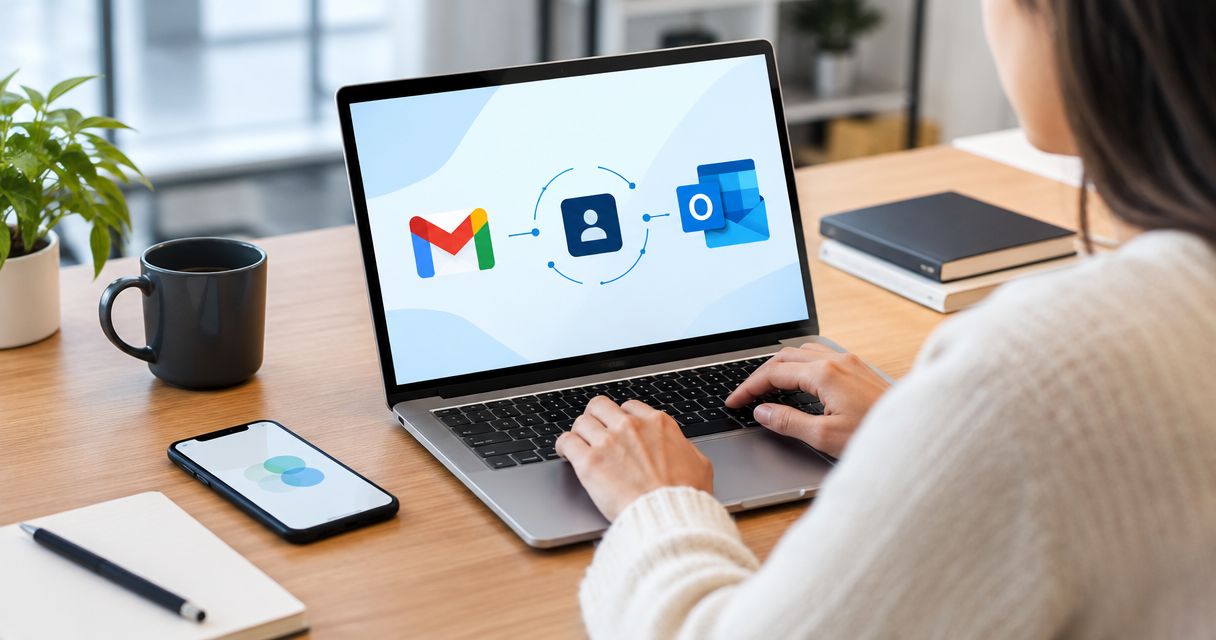
CRM software integrates with Gmail and Outlook together by connecting each supported mailbox separately, then attaching its messages to shared contact and deal records. Gmail and Outlook remain separate email accounts; the CRM supplies the shared customer history, while permissions, message matching, and follow-up rules determine what your team can see and do.
- How does CRM software integrate with Gmail and Outlook together? Separate mailbox connections feed shared customer records.
- Arches CRM suits growing sales teams seeking lead management, customer conversations, and follow-up workflows in one place.
- Confirm support for both email providers, sending permissions, shared mailboxes, and historical messages before connecting live accounts.
- Test reply handling and duplicate prevention before enabling email automation across your sales team.
How does CRM software integrate with Gmail and Outlook together?
A CRM supporting both providers connects to Google and Microsoft independently. Typically, you authorize access through each provider’s sign-in and consent process rather than give the CRM your mailbox password. The integration then reads or sends email within the permissions you approve.
The connection is only the starting point. The CRM also needs rules for matching messages to contacts, associating conversations with deals, and controlling access across your team. For the Gmail side of that process, see the Gmail-to-closed-deals workflow.
Use this sequence to understand the mechanics:
- Authorize each mailbox. Connect the Google account and Microsoft account through their respective supported integrations.
- Set capture rules. Decide which messages belong in the CRM and which conversations stay private.
- Match customer records. Associate email addresses with contacts and relevant opportunities.
- Assign follow-up ownership. Make clear who responds, from which account, and what happens after a reply.
Connecting both providers does not automatically merge their inboxes, calendars, contacts, or permissions. Each capability needs its own check.
Why this matters
A lead emails your Gmail-based salesperson, then replies to a colleague using Outlook. Without a shared record, each salesperson sees only part of the conversation. The next follow-up risks repeating a question the customer already answered.
Your 2026 integration checklist should focus on that handoff, not just whether both provider logos appear on a feature page. The useful outcome is a customer record that shows the conversation and the next action without exposing unrelated mail.
Arches CRM brings contacts, conversations, tasks, and sales activity into one platform. That central record supports the operating goal; provider-specific connection behavior still belongs in your evaluation and acceptance tests.
Which integration approach fits your workflow?
“Email integration” describes several different arrangements. Ask whether the connection captures messages automatically, requires a salesperson to log them, or passes selected events through an automation service.
| Approach | Best for | Main benefit | Main limitation |
|---|---|---|---|
| Direct mailbox integration | Teams needing ongoing email capture | Connects supported mailbox activity with CRM records | Access depends on permissions, account support, and capture settings |
| Inbox add-in | Salespeople working mainly inside email | Provides CRM actions alongside messages | Some actions depend on the user opening or using the add-in |
| Automation connector | Teams routing specific email events | Connects defined triggers with CRM actions | An event workflow is not necessarily a complete conversation sync |
| Email forwarding or logging address | Teams needing selective message capture | Lets users choose which messages to record | Does not by itself provide full mailbox synchronization |
These approaches can coexist, but overlapping capture paths need testing. A message logged through both forwarding and a direct connection needs duplicate handling.
Choose the approach that passes your actual handoff test, not the one with the longest integration list. For a 2026 evaluation, ask the vendor to demonstrate the specific account types and workflow your team uses.
Direct mailbox integration: check capture and sending separately
A direct connection can support background email capture, but reading messages and sending messages are separate permissions and functions. Confirm both rather than assuming that a visible conversation means your salesperson can reply from the CRM.
Check the sender address, sent-message handling, attachments, and reply threading. Also ask what happens when someone disconnects an account: whether capture stops, what happens to existing CRM records, and how another employee takes ownership.
The benefit is less dependence on manual logging. The trade-off is a broader permission and administration decision, particularly when a mailbox contains customer messages alongside confidential internal conversations.
Inbox add-ins: check what still requires a salesperson
An inbox add-in places CRM functions near the message your salesperson is reading. Depending on the product, those functions can include finding a contact, saving an email, or updating a record.
The benefit is working without repeatedly switching applications. The limitation is the distinction between an available action and an automatic action: a save button does not prove that every relevant conversation reaches the CRM.
Ask for a demonstration with the add-in closed. If your workflow depends on continuous capture, confirm how that capture operates independently of the salesperson’s actions.
How do you connect both providers without losing control?
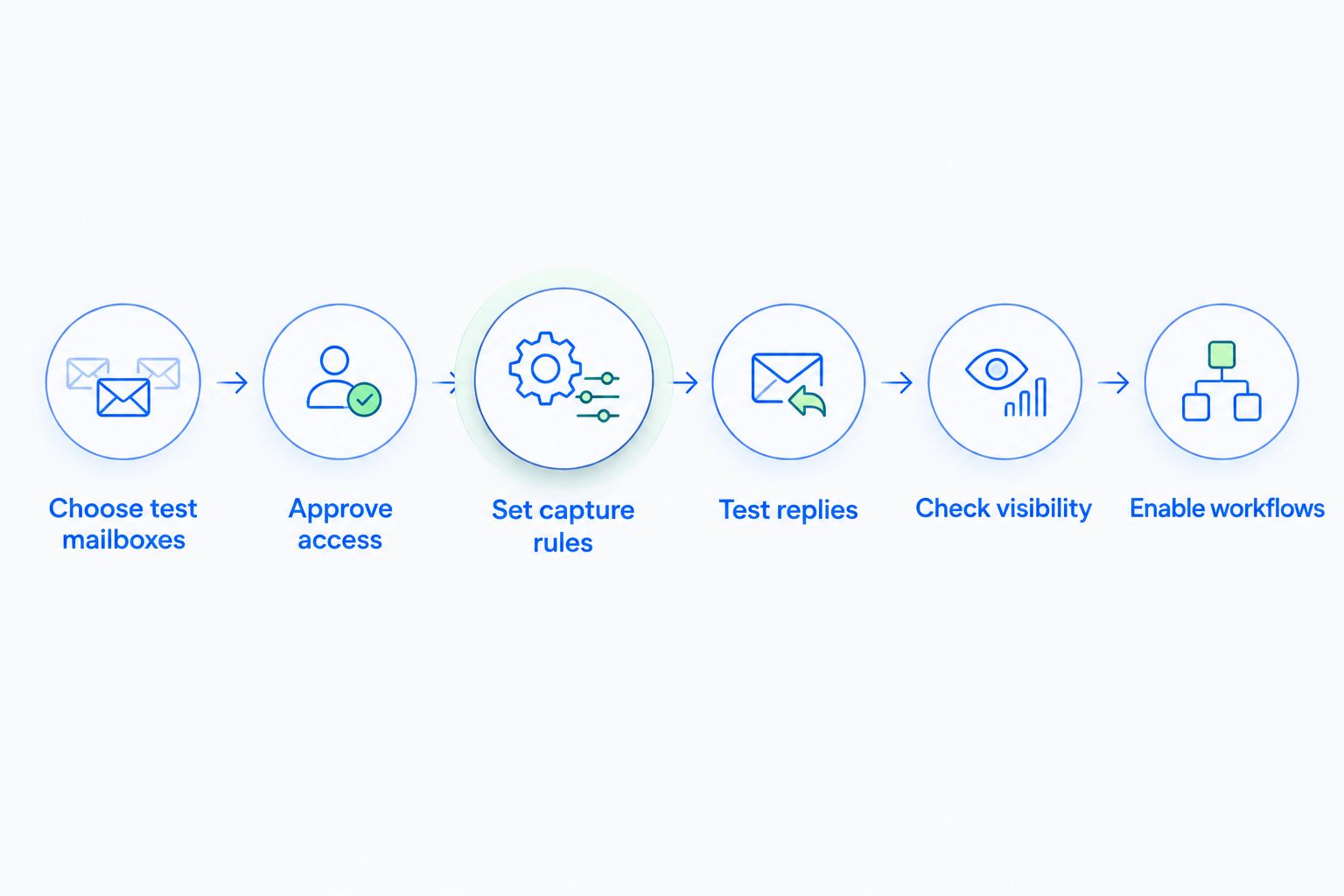
Build a small acceptance test before connecting the whole team. Use 2 test mailboxes, 1 shared test contact, and 2 reply tests as a controlled starting point—not as a performance benchmark.
Choose test mailboxes
Use a Gmail mailbox and an Outlook mailbox that represent the accounts your team actually uses. Record whether they are individual or shared accounts, because shared-mailbox access needs explicit verification.
In your 2026 rollout plan, name the mailbox owner and the administrator responsible for approving access. That keeps connection problems from becoming an unowned sales task.
Approve access
Read the consent screen before authorizing either provider. Check whether the integration requests message access, sending access, contact access, calendar access, or a combination.
Google Workspace and Microsoft organizational settings can affect which applications users can authorize. Resolve approval requirements before asking every salesperson to connect an account.
Set capture rules
Decide whether the CRM should capture all eligible messages or only selected customer conversations. Define exclusions for internal discussions and sensitive material wherever the integration supports them.
Use the shared test contact to check matching. If the customer uses another email address, verify whether you can associate it with the existing record rather than create another contact.
Test replies
Send a message from the Gmail test mailbox and reply from the customer’s test address. Repeat the exercise through Outlook, then inspect the CRM record for sender identity, message order, attachments, and ownership.
The 2 reply tests should also confirm what happens to a scheduled follow-up after a reply. A received reply should trigger the behavior you deliberately configured—not an assumed default.
Check visibility
Open the customer record as a salesperson and as a manager. Confirm that each person sees the intended conversation history and cannot access unrelated mailbox content through the CRM.
Then test a handoff. Change the record owner and verify that the receiving salesperson has enough context to respond without gaining unnecessary access to the original owner’s mailbox.
Enable workflows
Start with the workflow you have just tested. Define its trigger, responsible owner, stop condition, and failure-handling process before extending it to more accounts.
Keep a manual route for exceptions. A disconnected mailbox or unmatched customer address needs a visible task, not a silent gap in the pipeline.
Why does Gmail and Outlook integration vary between CRMs?
The providers are only part of the equation. Your account setup, CRM configuration, and security controls determine the working result.
- Account type: Individual accounts, organizational accounts, and shared mailboxes require separate support checks. Do not treat support for one as proof of support for all.
- Permission scope: Reading messages, sending messages, and accessing calendars are distinct capabilities. Approve only what the workflow needs.
- Capture method: Background synchronization, manual logging, and event-based automation produce different records. Check what happens without user intervention.
- Historical coverage: Ask whether the connection imports existing messages or starts with new activity. Confirm the supported history rather than assuming a complete archive.
- Record matching: Email aliases, alternate addresses, and multiple open deals complicate association. Test how your CRM handles ambiguous matches.
- Administrative controls: Organization policies and revoked access affect connections. Assign responsibility for checking connection health and resolving failures.
For your 2026 requirements document, separate essential functions from conveniences. Reliable reply capture is a different requirement from having an inbox sidebar.
Where does Arches CRM fit?
Arches CRM is best for growing sales teams that need lead management and follow-up workflows in one place. Its stated capabilities include customer conversations, sales pipelines, automated reminders and tasks, email summaries, and connections through integrations and APIs.
The benefit is a shared place to manage the customer relationship rather than treating email as the entire sales process. The evaluation requirement is narrower: confirm Gmail and Outlook account support, capture behavior, sending permissions, and shared-mailbox handling for your intended setup before committing to a rollout.
Use Arches CRM to evaluate that broader workflow. A useful demonstration follows a lead from incoming message to assigned task to the next pipeline action; it does not stop at successful sign-in.
Can Gmail and Outlook conversations appear on the same contact?
Yes, when the CRM supports both connections and associates their messages with the same contact record. The customer’s email address is a common matching key, but alternate addresses and duplicate records require additional handling.
Test this with your shared contact before rollout. Also inspect deal association: the correct person can still have a conversation attached to the wrong opportunity.
Does connecting email also connect both calendars?
No. Email integration does not establish that Google Calendar and Outlook calendar functions are connected or supported.
Check calendar permissions, event creation, meeting updates, cancellations, and visibility separately. A successful email reply test says nothing about whether a rescheduled meeting updates correctly.
Will both salespeople send the same follow-up?
A shared CRM history does not by itself prevent duplicate outreach. You need an assigned owner, clear sending rules, and workflows that recognize replies and ownership changes.
Test a handoff while a follow-up is scheduled. The acceptance condition is simple: the right person sends the intended message, and the old owner’s workflow behaves as configured.
FAQ
Can I use Gmail and Outlook in the same CRM?
Yes, if the CRM supports both providers and your account types. Connect each mailbox separately, then verify that its messages reach the intended customer records.
Do I have to give the CRM my email password?
Provider-authorized connections typically use a sign-in and consent process rather than asking you to share your mailbox password with the CRM. Review the requested access and your organization’s approval requirements.
Will the CRM import all my old Gmail and Outlook messages?
Historical message coverage depends on the integration and its settings. Confirm the supported history and test an older conversation before treating the CRM as a complete record.
Can I connect a shared Outlook mailbox to my CRM?
Only if the CRM supports your shared-mailbox setup and the required permissions. Support for an individual Outlook account does not establish shared-mailbox support.
Will connecting both providers create duplicate contacts?
Duplicate contacts are possible when matching rules treat the same customer’s addresses as separate people. Test alternate addresses and review matching or merge controls before expanding capture.
Does Arches CRM automatically support every Gmail and Outlook workflow?
Do not assume every provider-specific workflow is supported. Arches CRM includes email communication, follow-up automation, integrations, and APIs; verify your exact mailbox and sending requirements during evaluation.
What should I test before enabling automated follow-ups?
Test incoming replies, sender identity, ownership changes, and workflow stop conditions before enabling automated follow-ups. Also verify what your team sees when a mailbox connection fails.
One last thing
A successful sign-in proves access, not a working sales process. The decisive 2026 acceptance test is a handoff: a customer replies to one salesperson, another takes ownership, and the CRM preserves the context without sending an unwanted follow-up.
Make that handoff your final test before rollout. If it fails, fix matching, visibility, or workflow rules before adding more mailboxes.